
Overview
Overview
Project management takes the project as a unit and manages project data, project tools, project analysis results and project members in one stop, which is convenient for researchers to collaborate and analyze online. You can create, query, edit, and delete projects. Project members and role management.
Create project
The project module allows you to create a project and view the projects that you are responsible for, manage, and participate in.
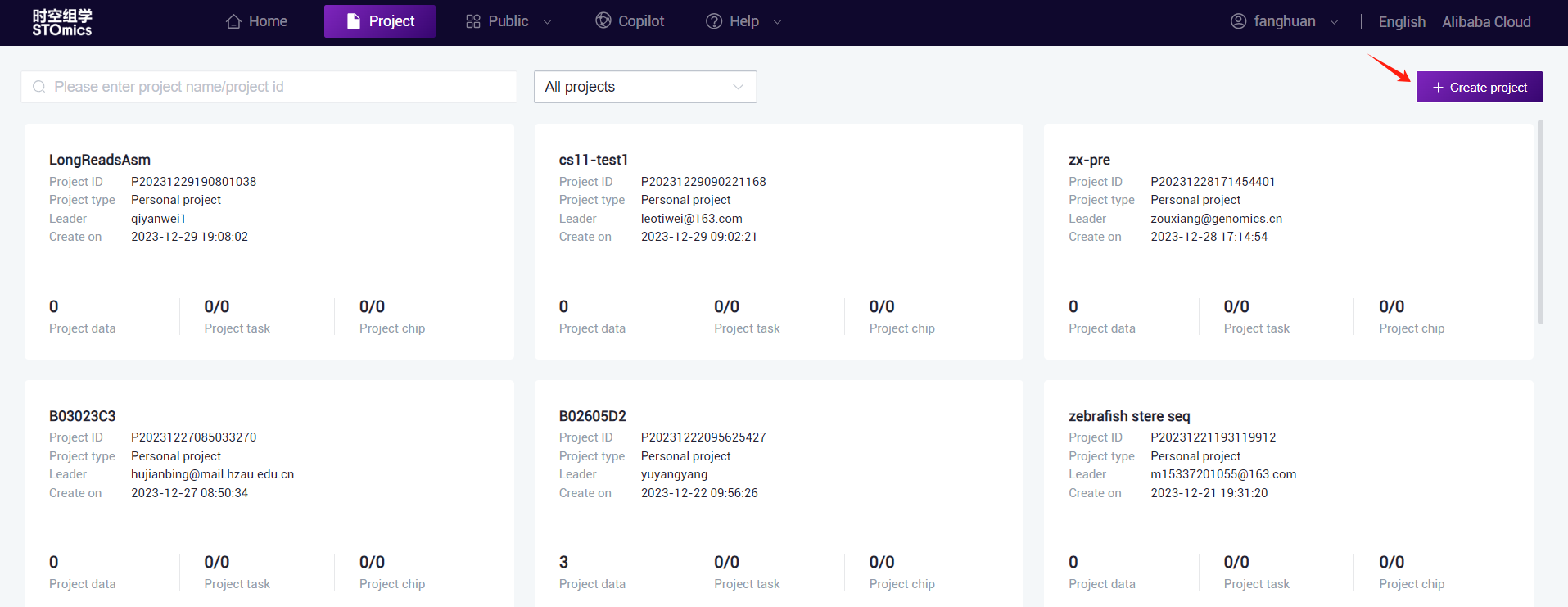
Project Overview
Manage project information, project descriptions, and project members.
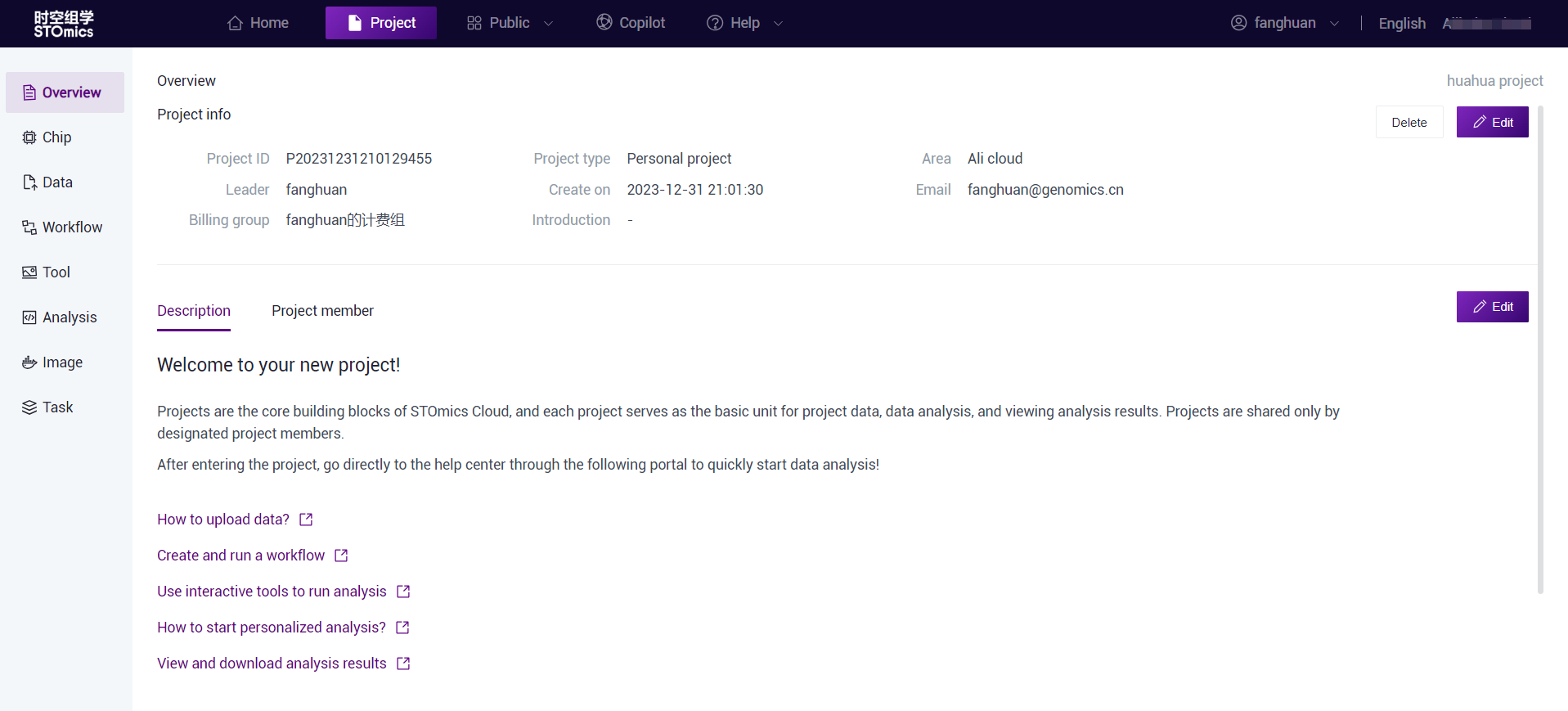
Project information
You can view, edit, and delete projects. Different users have different permissions. The project owner can delete individual projects (please note: business projects do not support deletion). The project owner and administrator can modify the project name and introduction. All members can view the project information.

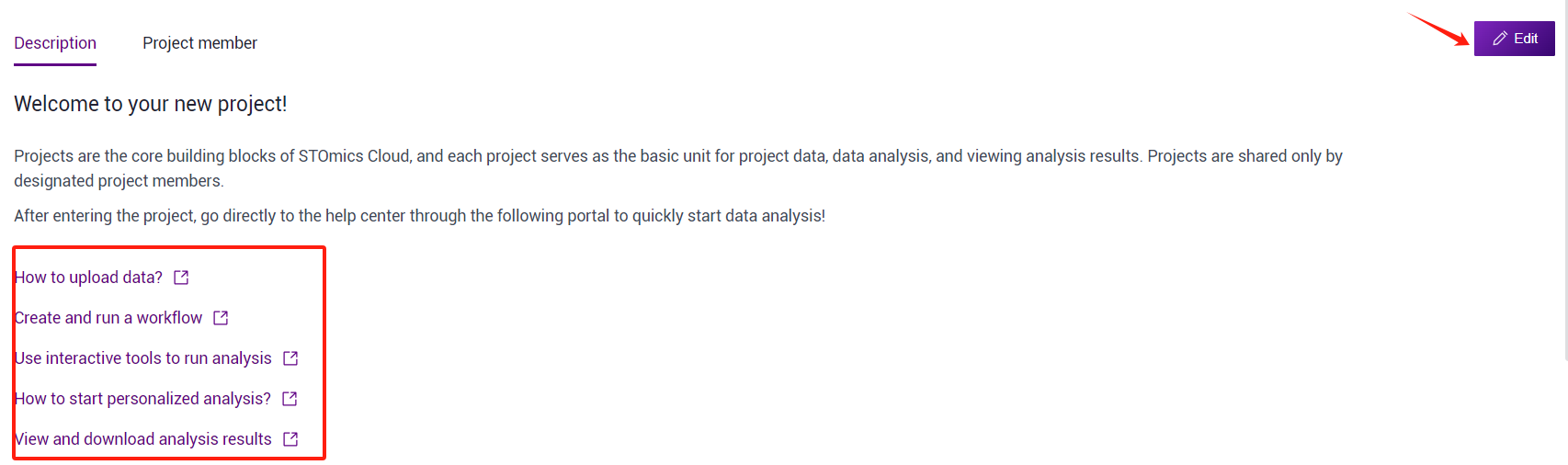
Description
By default, the help center guide for new projects, uploaded data, process analysis, interactive analysis, personality analysis, and analysis results is displayed;
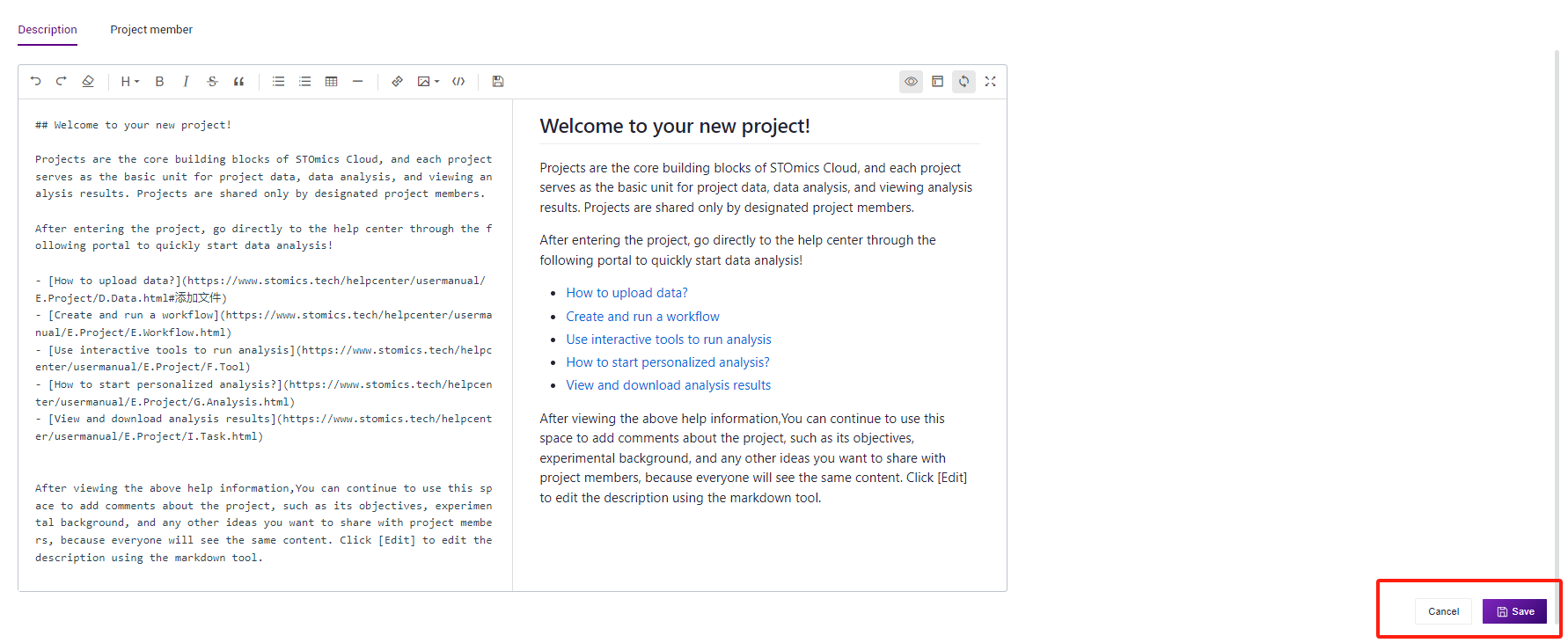
Click edit to use the markdown tool to modify the information displayed on the description page. After saving, the information is updated;
Project member management
Users can manage project team members and perform project collaboration analysis through project member management. Project owner and project management can add project members and edit member roles.

Add members
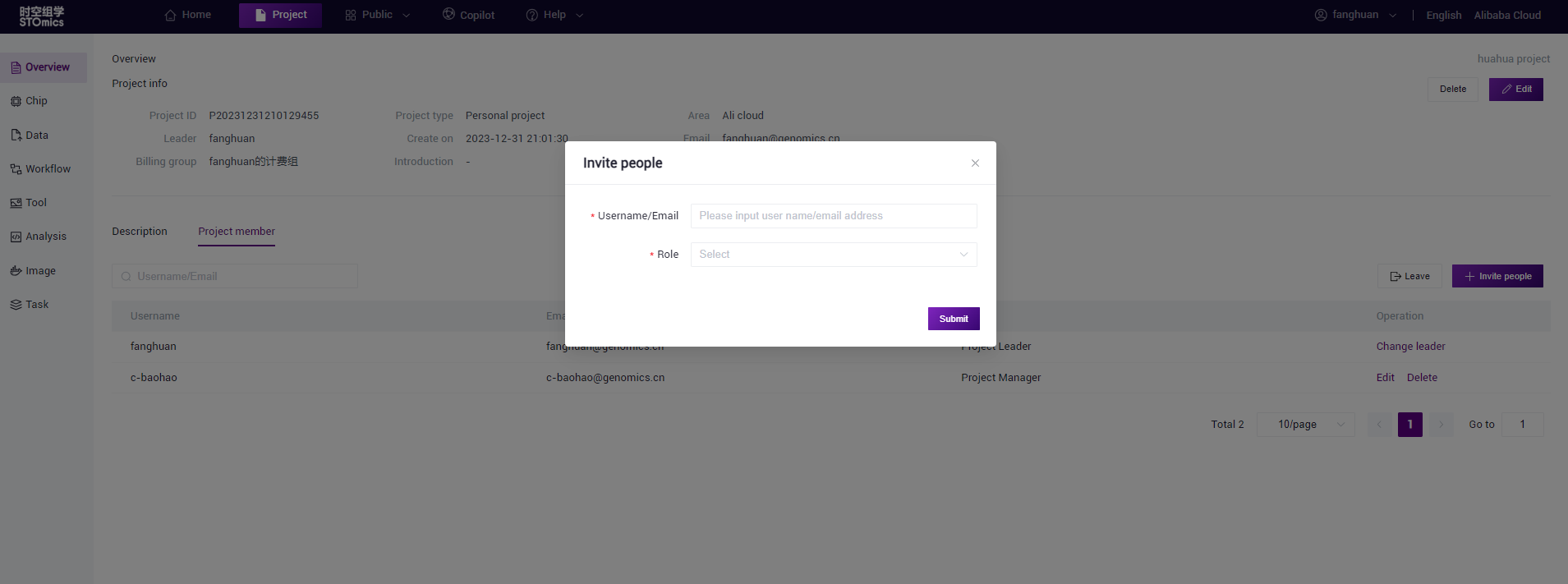
Project owner and project administrator can add project members by user name or email address, click Add member, enter user name and email address, select user role, and then add.
Data authorization
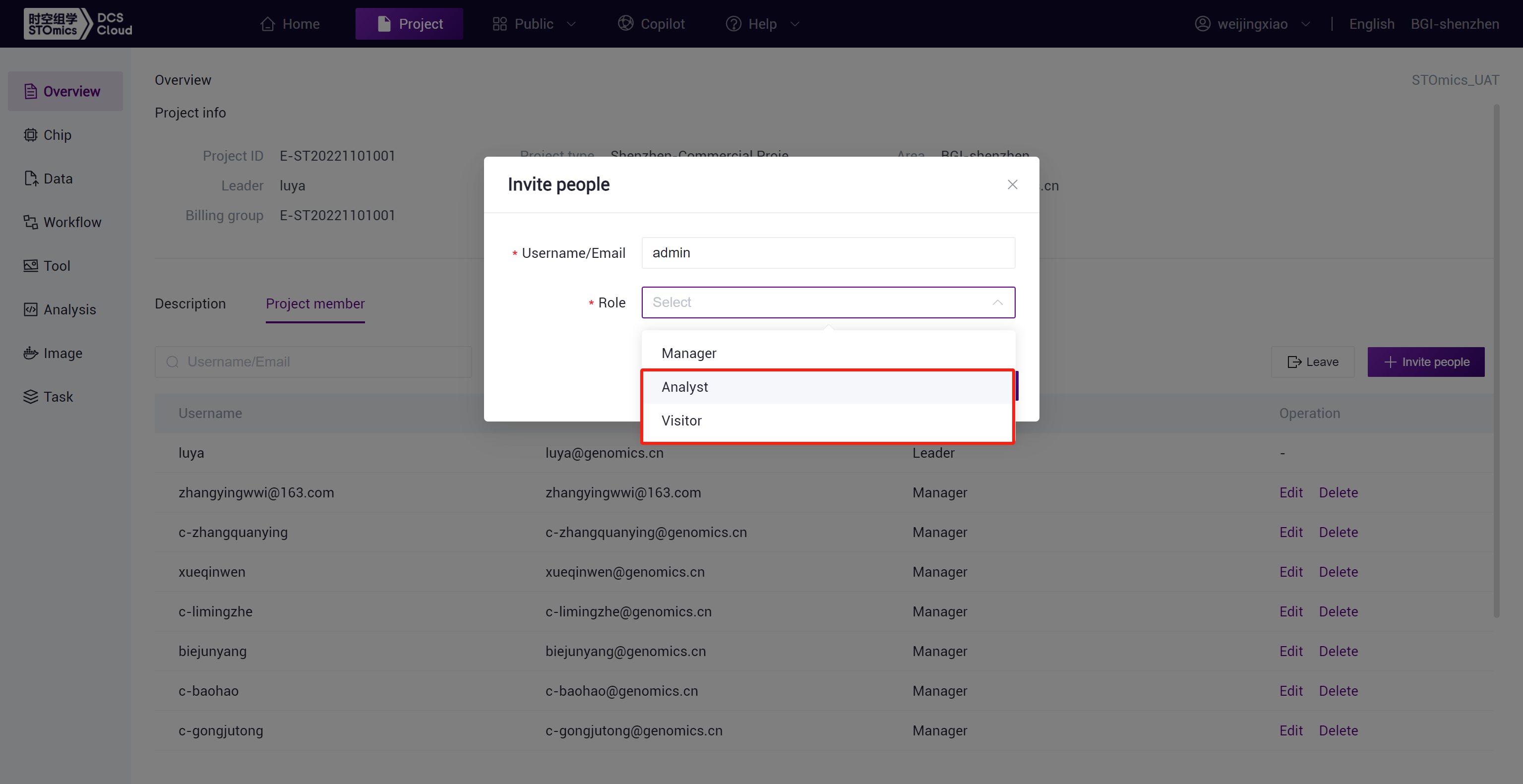
You can specify a data scope when adding a new member as an Analyst or Visitor, and support post authorization by locating data by entity ID (SN, sample) or task search.
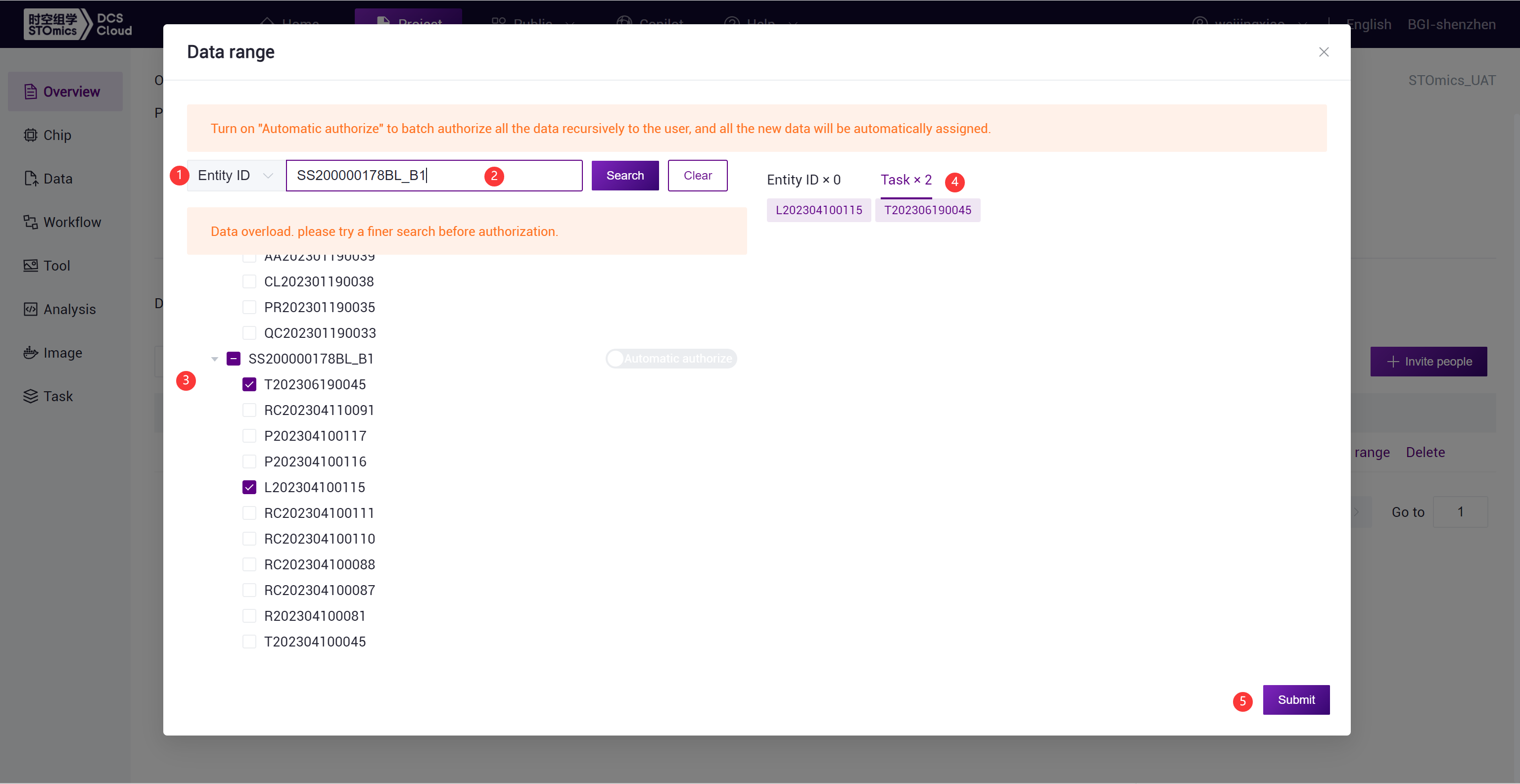
Authorization by Entity ID (SN number or sample):
Select "Entity ID" as the search method.
Enter the SN number for the search.
Select the authorized chip and task.
Confirm the selected task for the chip.
Submit the authorization.
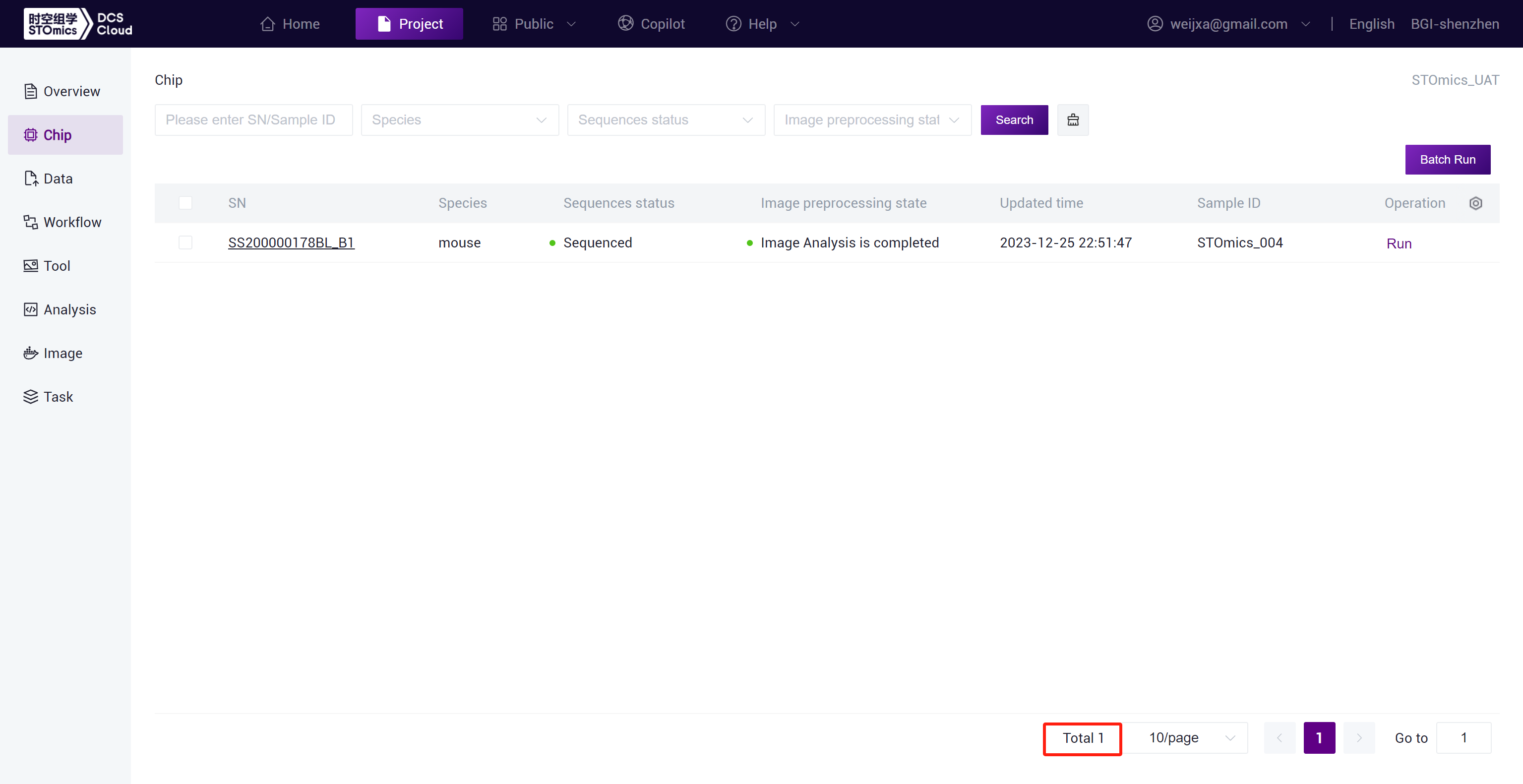
After the authorization is completed, the visibility of the chip is different for the authorizer and the authorized person:
Authorizer can see the chip:
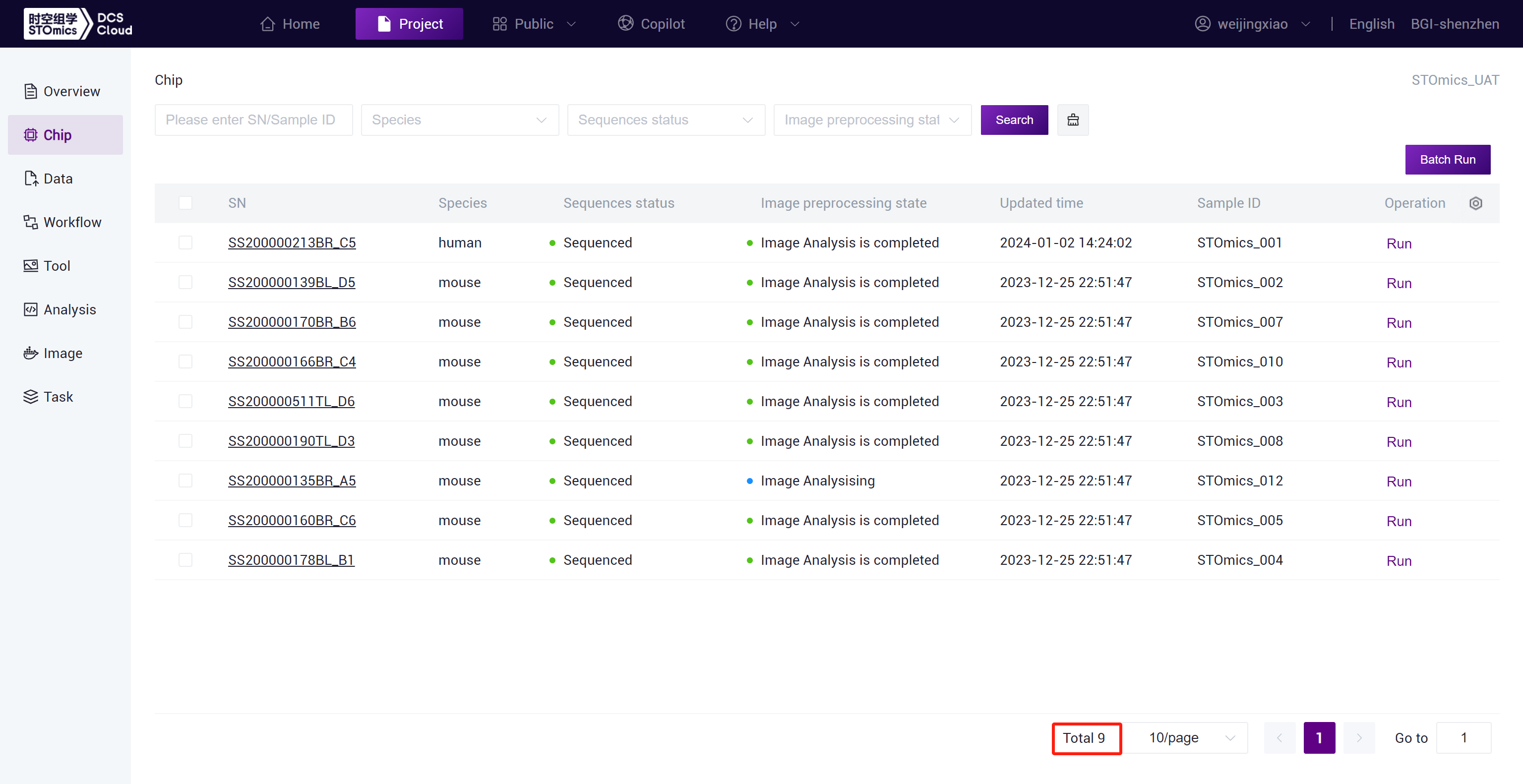
Authorized person can see the chip:
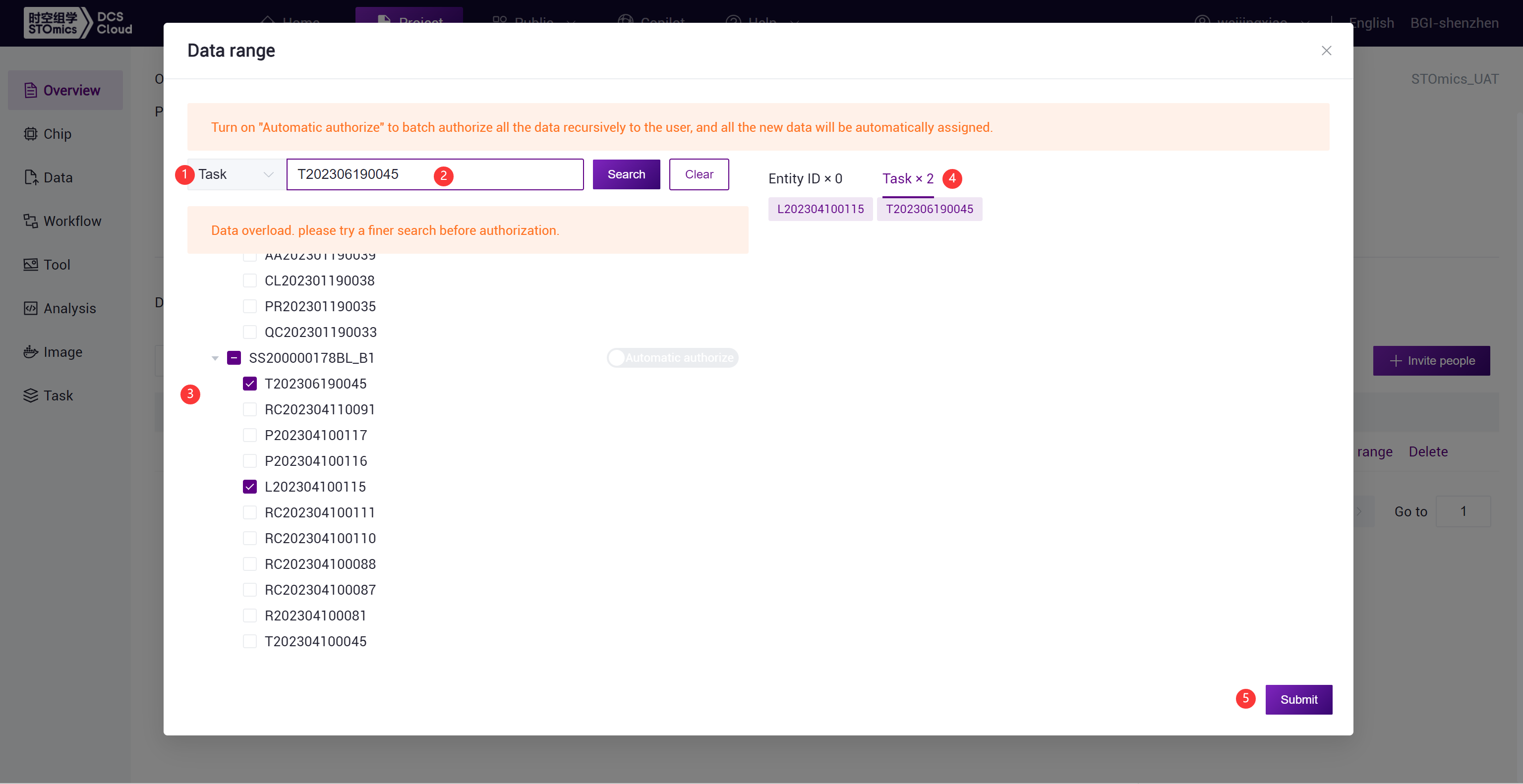
Authorization by task number search:
Select "Task" as the search method.
Enter the task number for the search.
Select the authorized task.
Confirm the selected task.
Submit the authorization.
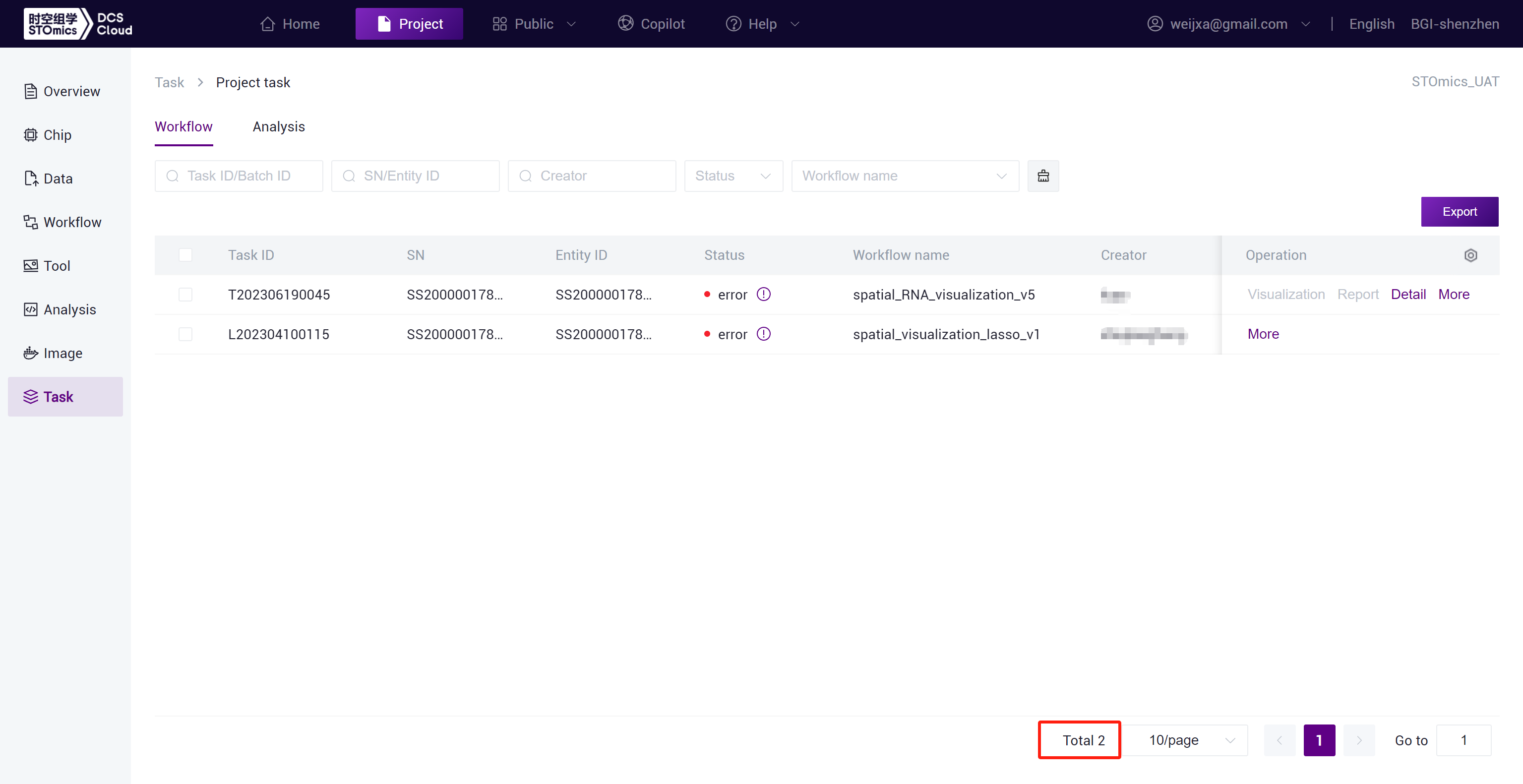
After the authorization is completed, the visibility of the task is different for the authorizer and the authorized person:
Authorizer can see the task:

Authorized person can see the task:
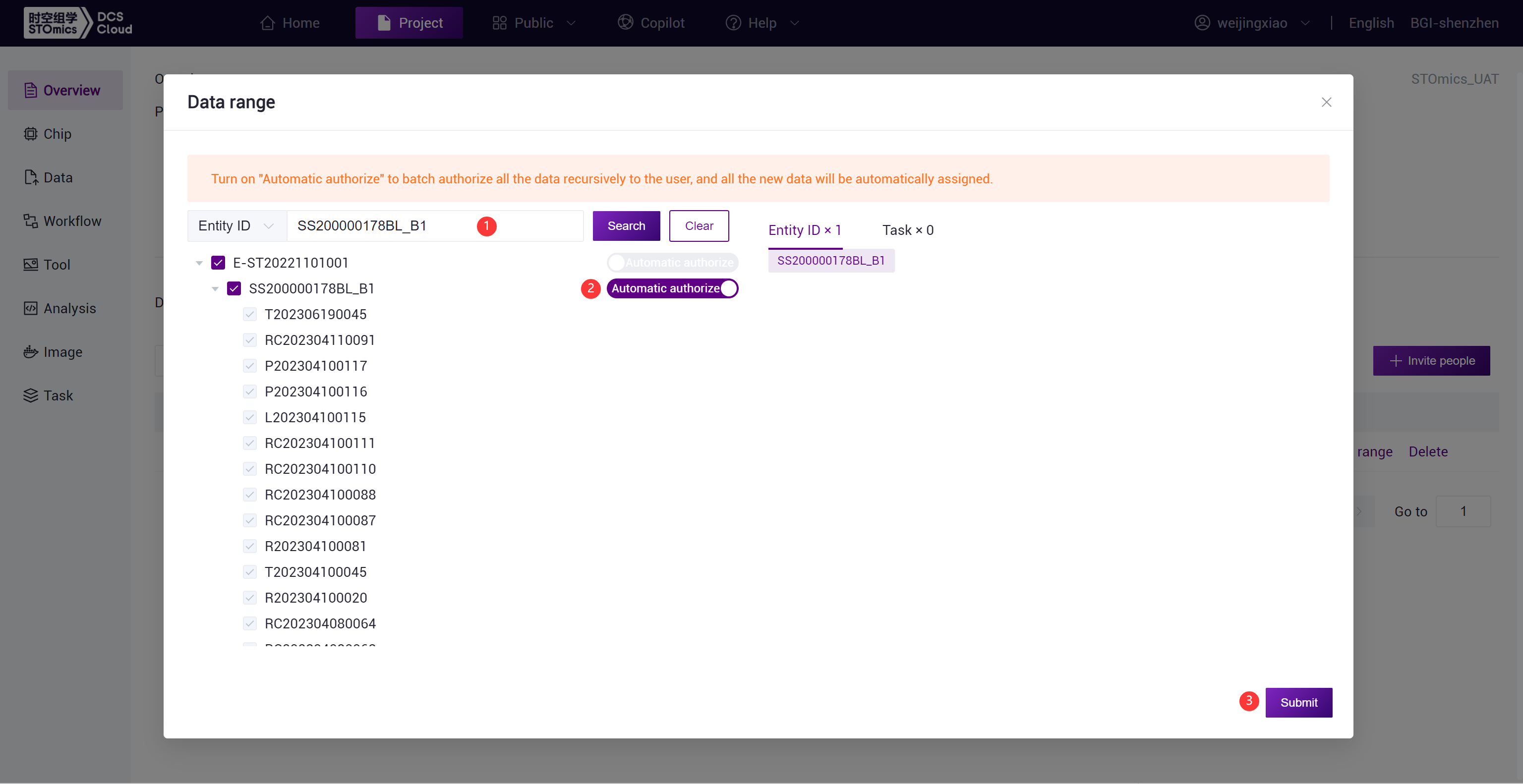
Automatic Authorization
After authorizing relevant chips, all tasks delivered under the chips will be automatically authorized for the user. When locating the chip through entity ID search, turn on the "Automatic Authorization" switch (the button turns purple) to enable automatic authorization.
Modify member roles
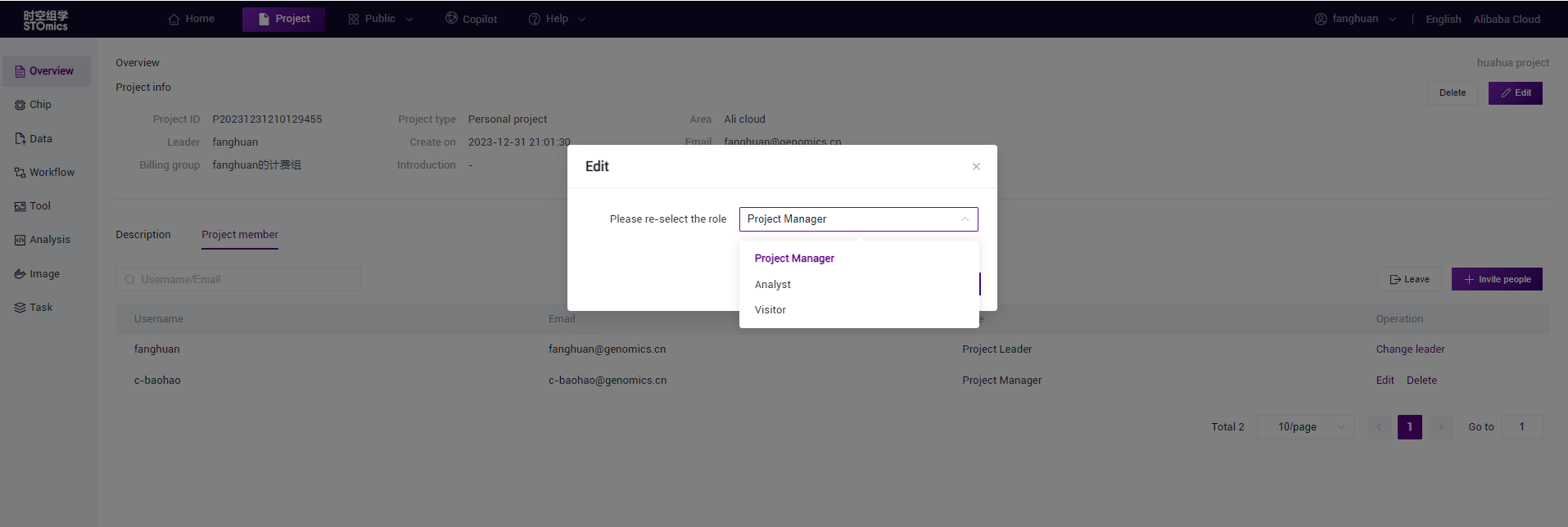
The project owner and project administrator can modify the project member roles. Click edit, select a new role, and click OK to modify it.
Modify the data range
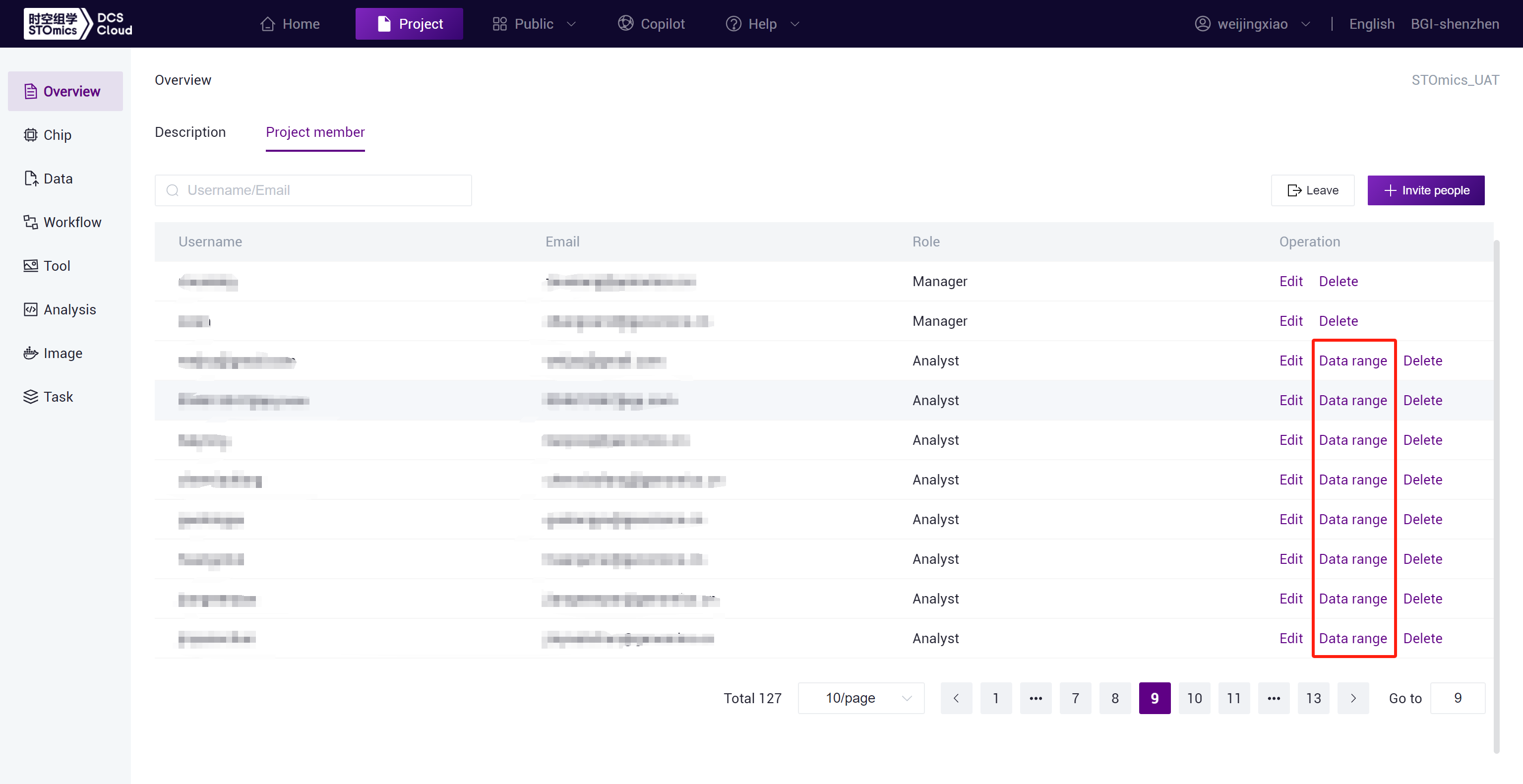
Project leaders and project administrators can modify the scope of data visible to analysts or visitors, click "Data Scope" to modify the scope of data visible to users, and the detailed operation of authorization can be found in Data Authorization.
Role permissions
Members in a project can have different user roles. The roles correspond to different permissions for data analysis and information data access. There are four default user roles: project owner, project administrator, analyst, and visitor.
| Menu | Function | Functional description | Leader | Manager | Analyst | Visitor | Mask Downloader |
|---|---|---|---|---|---|---|---|
| Overview | Project Management | Modify basic project information Delete project (Internal BGI projects such as PM projects have no deletion permission currently) | ✓ | ✓ | × | × | × |
| Project Budget Management | View overall project consumption and consumption of each member Adjust overall project budget and budget for each member | ✓ | ✓ | × | × | × | |
| Project Member Management | Add, edit and remove members Authorize data scope for members | ✓ | ✓ | × | × | × | |
| Change Project leader | Transfer project leader | ✓ | × | × | × | × | |
| Project Publish | Publish project to public library | × | × | × | × | × | |
| Data | View Project Data | Access files within the project | ✓ | ✓ | ✓ | ✓ | ✓ |
| Manage Project Data | Data upload, deletion, duplication, movement, metadata editing, etc. | ✓ | ✓ | ✓ | × | × | |
| Download Project Data | Download project data | ✓ | ✓ | ✓ | × | ✓ | |
| View Project Tables | View table information and data | ✓ | ✓ | ✓ | ✓ | ✓ | |
| Manage Project Tables | Create, download, delete, edit and run tables, etc. | ✓ | ✓ | ✓ | × | × | |
| Publish Project Data | Publish project data to public library | × | × | × | × | × | |
| Workflow | View Workflow | Check workflow details | ✓ | ✓ | ✓ | ✓ | ✓ |
| Create Workflow | Create, update and duplicate workflows, etc. | ✓ | ✓ | ✓ | × | × | |
| Manage Workflow | Edit and delete workflows, etc. | ✓ | ✓ | × | × | × | |
| Publish Workflow | Publish workflow to public library | ✓ | ✓ | ✓ | × | × | |
| Run Workflow | Execute workflow analysis tasks | ✓ | ✓ | ✓ | × | × | |
| Tool | View Tool | Check tool details | ✓ | ✓ | ✓ | ✓ | ✓ |
| Create Tool | Create, update and duplicate tools, etc. | ✓ | ✓ | ✓ | × | × | |
| Manage Tool | Edit and delete tools, etc. | ✓ | ✓ | × | × | × | |
| Publish Tool | Publish tool to public library | ✓ | ✓ | × | × | × | |
| Run Tool | Execute tool analysis tasks | ✓ | ✓ | ✓ | × | × | |
| Plot | View Tool | Check tool information | ✓ | ✓ | ✓ | ✓ | ✓ |
| Run Tool | Run and save tools, etc. | ✓ | ✓ | ✓ | × | × | |
| Analysis | View Analysis Details | Check analysis details | ✓ | ✓ | ✓ | ✓ | ✓ |
| Create Analysis | Build custom analysis | ✓ | ✓ | ✓ | × | × | |
| Offline Analysis | Reset resources and submit offline analysis tasks | ✓ | ✓ | ✓ | × | × | |
| Edit Analysis | Modify analysis details | ✓ | ✓ | × | × | × | |
| Delete | Remove custom analysis | ✓ | ✓ | × | × | × | |
| Online Task | Run, stop, save environment, extend timeout, etc. | ✓ | ✓ | ✓ | × | × | |
| Publish Analysis | Publish analysis tool | ✓ | ✓ | × | × | × | |
| AI Model | View Model | Check model information | ✓ | ✓ | × | ✓ | ✓ |
| Model Management | Add, fine-tune, infer, deploy and edit models, etc. | ✓ | ✓ | × | × | × | |
| Delete Model | Remove models | ✓ | ✓ | × | × | × | |
| Agent | Run | Execute intelligent analysis | ✓ | ✓ | ✓ | × | × |
| Task | View Report | Check task reports | ✓ | ✓ | ✓ | ✓ | ✓ |
| Rerun Task | Restart tasks | ✓ | ✓ | ✓ | × | × | |
| Task Management | Start, cancel and delete tasks | ✓ | ✓ | × | × | × | |
| Service Call | Call model services | ✓ | ✓ | ✓ | × | × | |
| Service Management | Stop, start and delete model services | ✓ | ✓ | × | × | × |
Remove member
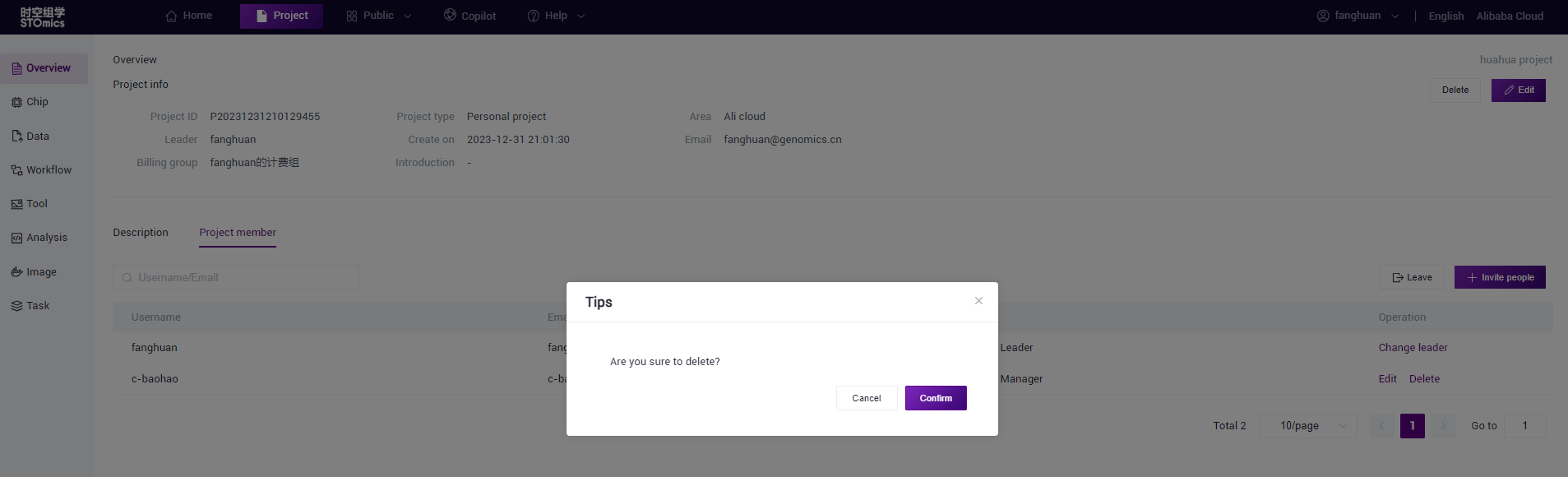
Project owners and project administrators can remove project administrators, analysts, and visitors from the project. Click delete to delete project members.
Exit the project
Any member of the project can choose to exit the project. The project owner cannot exit the project directly. You must transfer the project owner to another project role before you can exit.