
Billing Function
Recharge and Invoice
The platform adopts a prepaid model, which needs to be recharged before use.
Free trial
After you successfully register, the platform will automatically create a default billing group named after your username (i.e., XXX billing group) and award you some trial funds, which you are welcome to use to try out the platform's features. The trial funds have no expiration date and are valid until used up.
The trial funds cannot be transferred or refunded, and the amount is based on the platform's policies. Please refer to the registration success notification email you received.
Recharge
Recharge
In all regions in China, we support self-recharge by the billing group owner using an Alibaba Cloud authorization code. The specific steps are as follows. For more details on billing group members and permissions, please refer to: Definitions.
- Open the billing group: Click on the billing group under your username and select a billing group to enter.

- Go to the Alibaba Cloud Market to purchase products.

- Copy the authorization code to recharge on the platform.

In addition, you can also contact the platform’s official email: cloud@genomics.cn to sign a contract and recharge.
If you need to create a new billing group, please contact cloud@genomics.cn.
Recharge Instructions for Sub billing group
For details on billing group types, please refer to: Definitions.
Sub billing group can be recharged using Alibaba Cloud authorization codes. If you have a signed contract with a partner, you may also contact the master billing group owner for transfer-based recharge. Contact information for the master billing group owner can be found on the Billing account homepage:
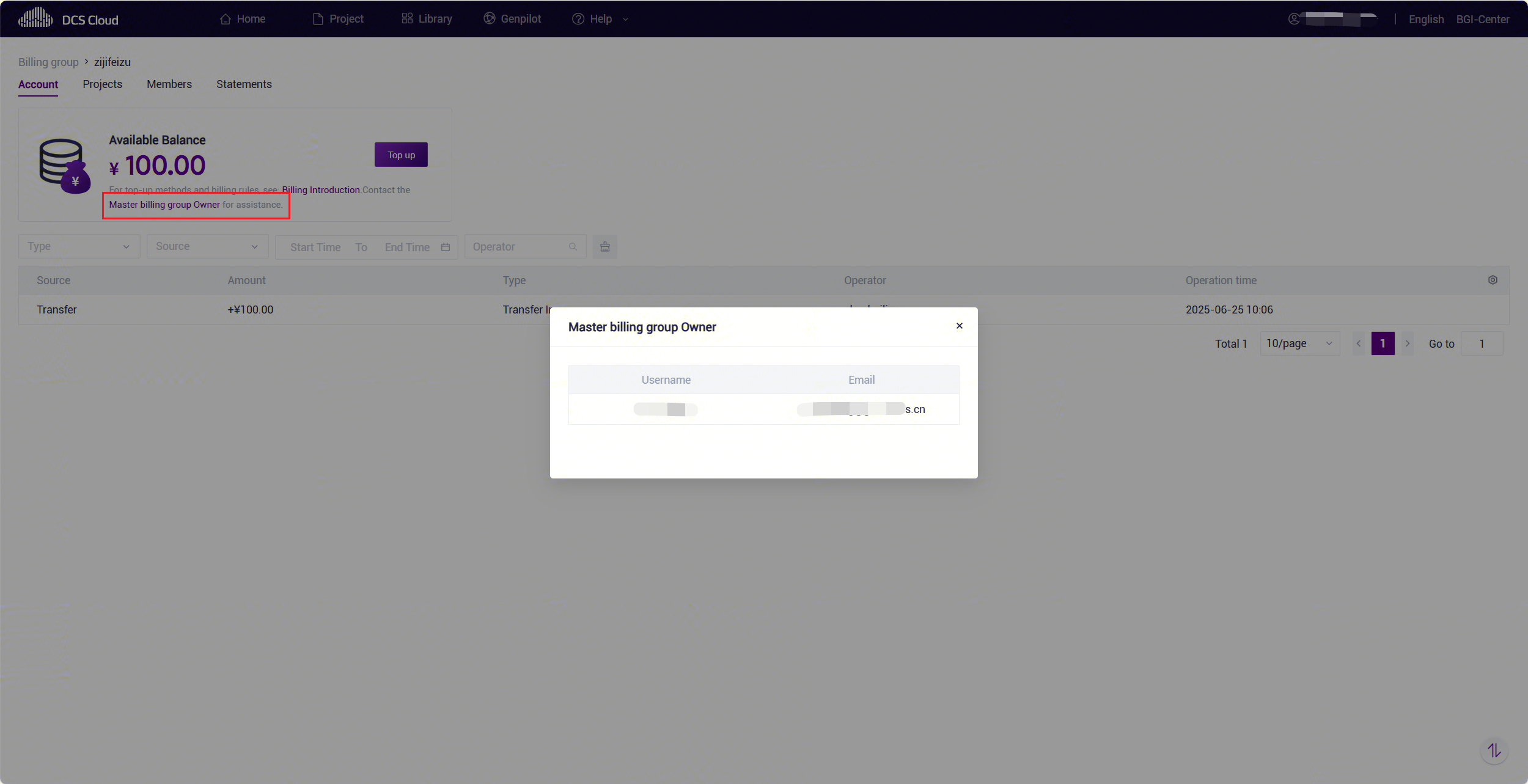
Recharge Instructions for BGI internal project billing group
For details on the scope of BGI internal project billing group, please refer to: Definitions.
- PM billing group
The initial amount in the PM billing group is the IT budget of the project. If you need to recharge, please contact the platform's official email: cloud@genomics.cn.
- Business billing group、CRM billing group
The business billing group and CRM billing groupwill also receive some trial funds from the platform, which can be used for downloading files and experiencing features. To continue recharging, you can:
1)If the contract signed for the project includes bioinformatics analysis fees, please contact the corresponding salesperson. The sales will coordinate with the platform's official email cloud@genomics.cn for recharge.
2)You can also contact the platform's official email cloud@genomics.cn to sign a new analysis contract with the platform and then recharge.
Apply for invoice
The amount you actually recharge on the platform can be applied for an invoice. Please note that the platform trial funds and other amounts given as gifts cannot be applied for an invoice.
For authorized code top-ups, you can apply for an invoice in Alibaba Cloud Marketplace, details of which can be found at:Apply for invoice. For other top-up amounts, please send the billing information to cloud@genomics.cn to apply for an invoice. We will review the information and issue an invoice.
Special note: If you need to issue an enterprise invoice for the authorization code purchased in Alibaba Cloud Marketplace, but you cannot conduct enterprise authentication, you can follow the following steps:
(1) Recharge by using the authorization code on the platform
(2) Apply for personal invoice in Alibaba Cloud Marketplace
(3) Send billing information (Alibaba Cloud market order number, order screenshot, billing amount, billing name, tax number) and invoice recipient's email address to the official email cloud@genomics.cn to apply for a enterprise invoice
We will review the top-up record and billing information, and issue the enterprise invoice to the email address of the invoice recipient.
Refund
If you have owner rights to a billing group (for details on billing group members and their permissions, please see: Definitions, the platform supports refunds for the balance of the billing group.
For authorized code top-ups, you need to request a refund in Alibaba Cloud Marketplace. The refund policy is in accordance with the Aliyun Market policy (see: Refund Policy for Alibaba Cloud) and will be processed after being reviewed and approved by the platform.
For any other refund requests or issues, please contact the platform's official email:cloud@genomics.cn. For funds not recharged via authorized code in sub billing groups (see Definitions for billing group types), you may contact the master billing group owner to request a refund.
Special Notes:
(1) When you initiate a refund, the projects associated with the billing group must not have any queued or running tasks. You must wait until all tasks have ended and the bill has been updated before proceeding with the refund operation.
(2) The current platform only supports full refunds based on the fapiao amount and does not support partial refunds. See the table below for examples.

Cost reminder and delinquency handling
Low balance risk reminder
If the balance of a billing group falls below 100, and you have owner rights to this billing group (for details on billing group members and their permissions, please see: Definitions), you will receive a low balance reminder email.
To avoid the risk of accruing debt and being unable to use platform features, which could affect your normal work, it is recommended that you promptly recharge your billing group upon receiving this email, as detailed in: Recharge.
Handling of outstanding charges
When the balance of the billing group is less than 0, the platform will start the delinquency verification. At this time, the project associated with the billing group cannot run analysis tasks, upload/download data and other operations that require payment. At the same time, the data stored by the project will continue to incur storage charges, causing the amount owed by the billing group to continue to increase.
Special Note: For the BGI internal project billing group, mask files (h5 files) for associated projects can still be downloaded during the period of overdue fees. The download will be charged and accounted for normally. The scope of BGI internal projects is as follows: Definitions.
Bill inquiry
Billing group owners can view account balances and expense bills.
In the Account menu, you can view the billing group's balance, recharge/refund, and other operation records.

In the Statement menu, You can view and download monthly bills. You can also switch to viewing trends over the last six months or the last one year.

You can also view the bill details and download them:

Member management
Billing group owners can manage members. For details on billing group members and their permissions, please see: Definitions.
In the Member menu, you can view and manage billing group members.

1)Add Member
- The member being added must be registered on the platform. Add by entering the platform's username, as invitation through email is not supported.
- It is possible to choose whether the added user is an owner.

2)Edit/Delete member
Supports editing member roles.

Please note: If the current billing group has only one owner, you cannot edit the member's role or delete the member.

Master billing froup functions
For B2B users, they can contact the platform administrator to create a new master billing group. The owner of the master billing group can create new sub billing groups by themselves according to business conditions, and conveniently transfer the balance to the associated sub billing groups, so as to accelerate cooperation conversion and strengthen fund management.
Create a new Master billing group
If you need to create a new billing group, please contact the official platform email cloud@genomics.cnto apply. The master billing group retains all functions of the billing group and adds the function of managing sub billing groups. The master billing group is identified by a label:
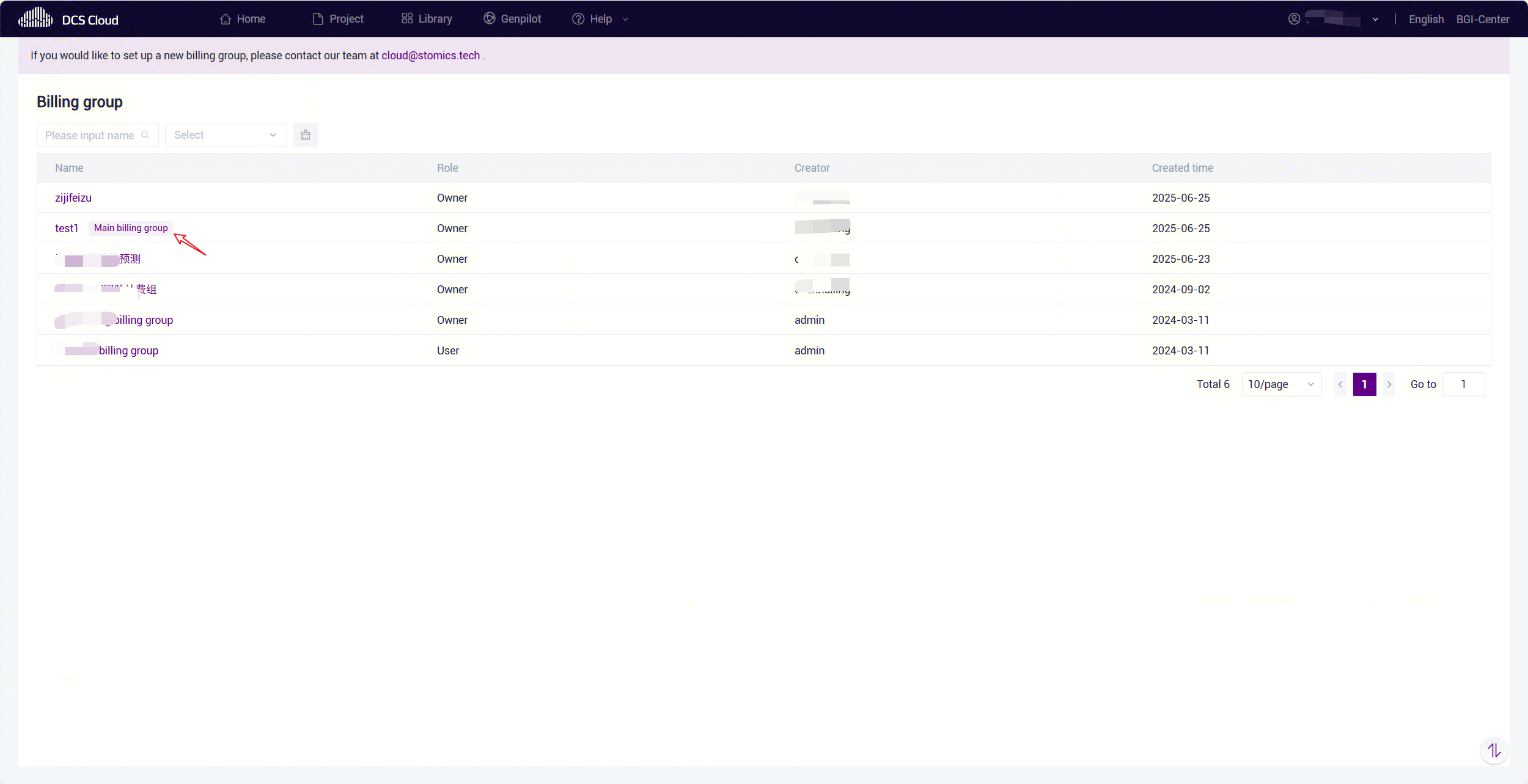
Manage sub billing groups
Create a new sub billing group
Enter the master billing group, switch to the sub billing group tab, and you can view all sub-billing groups.
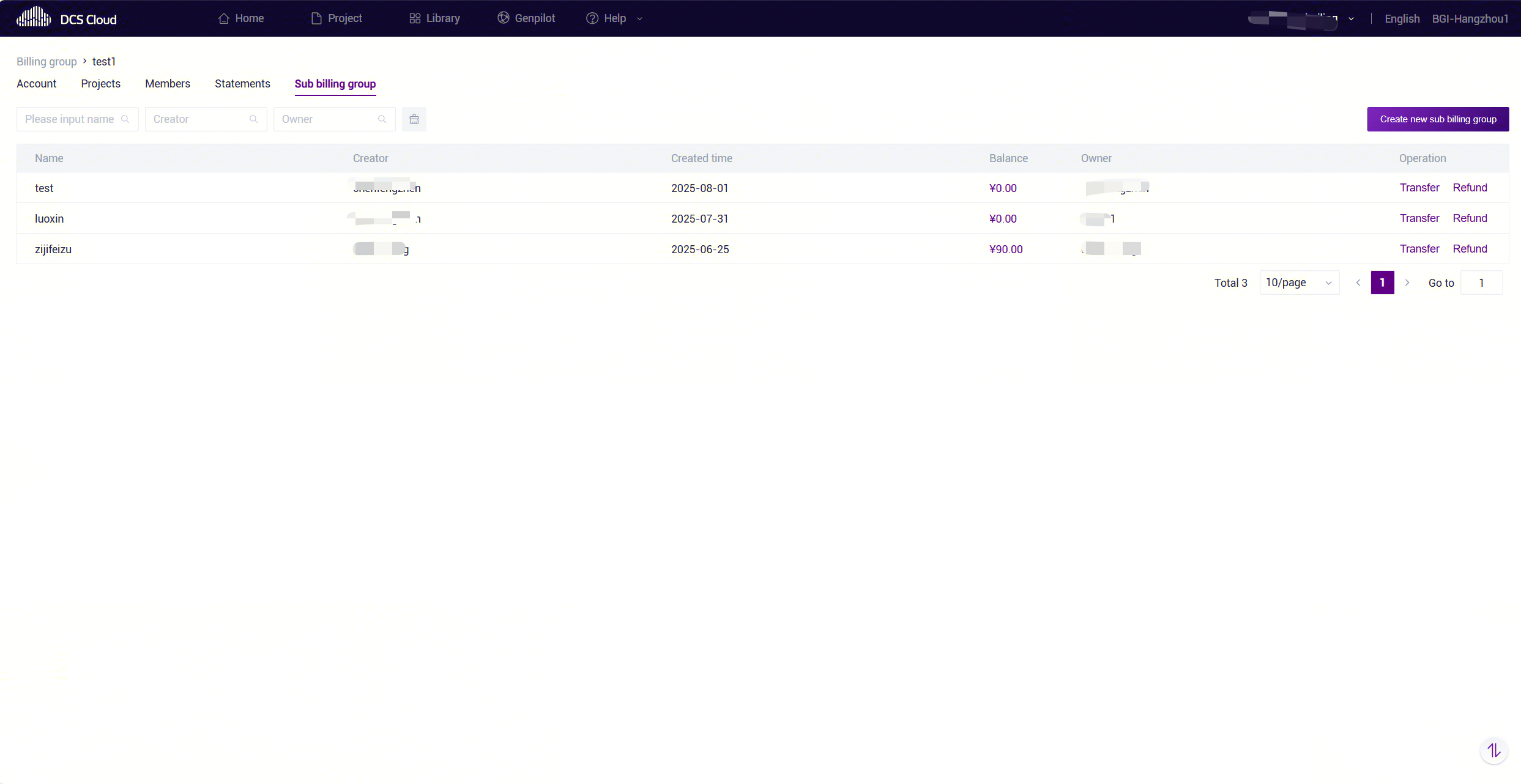
Click "Create new sub billing group", input the user's email, and specify an owner of the sub billing group. For the owner's permissions, please refer to: Definitions. Note: If the email is not registered on the platform, it cannot be added as an owner.
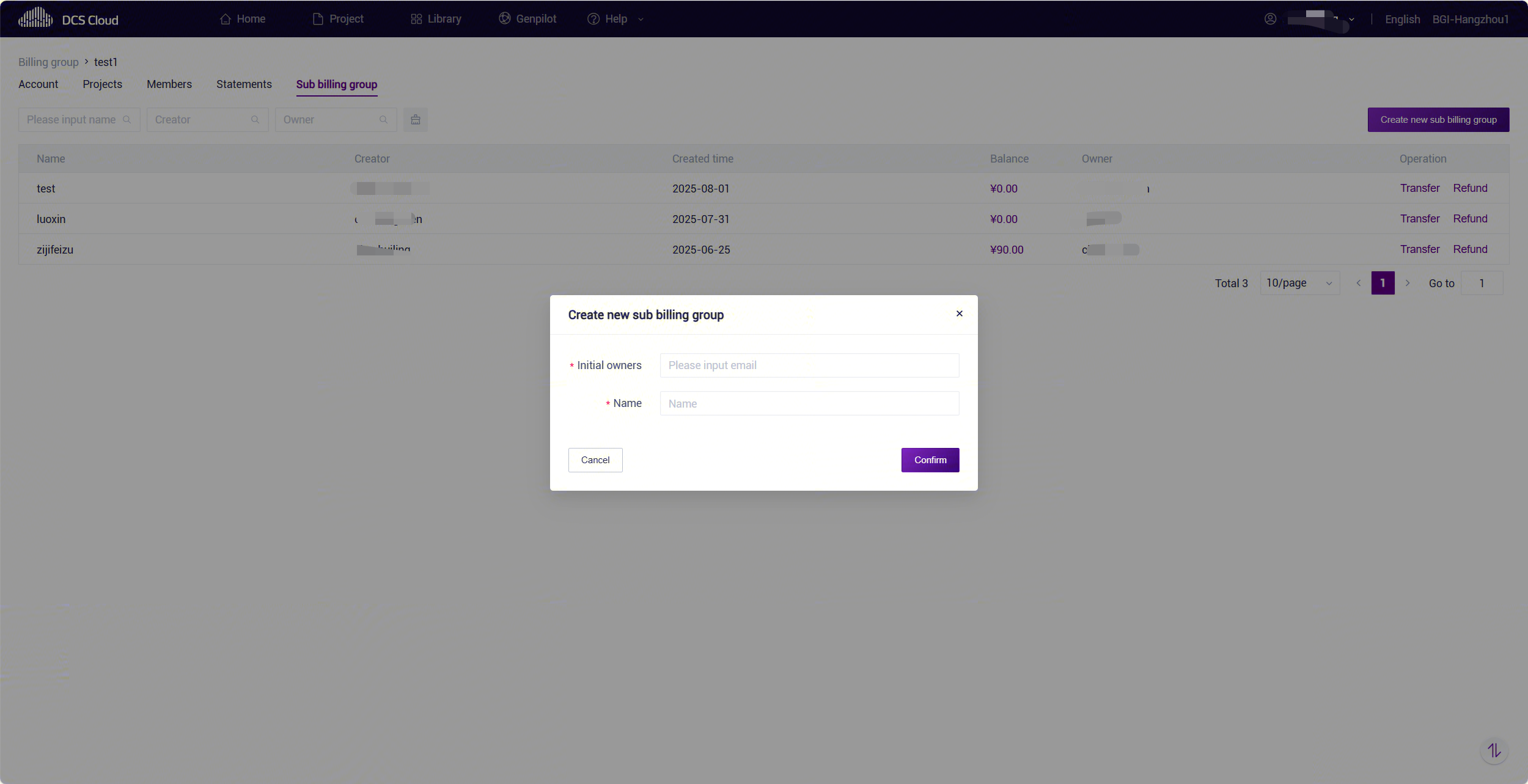
Transfer
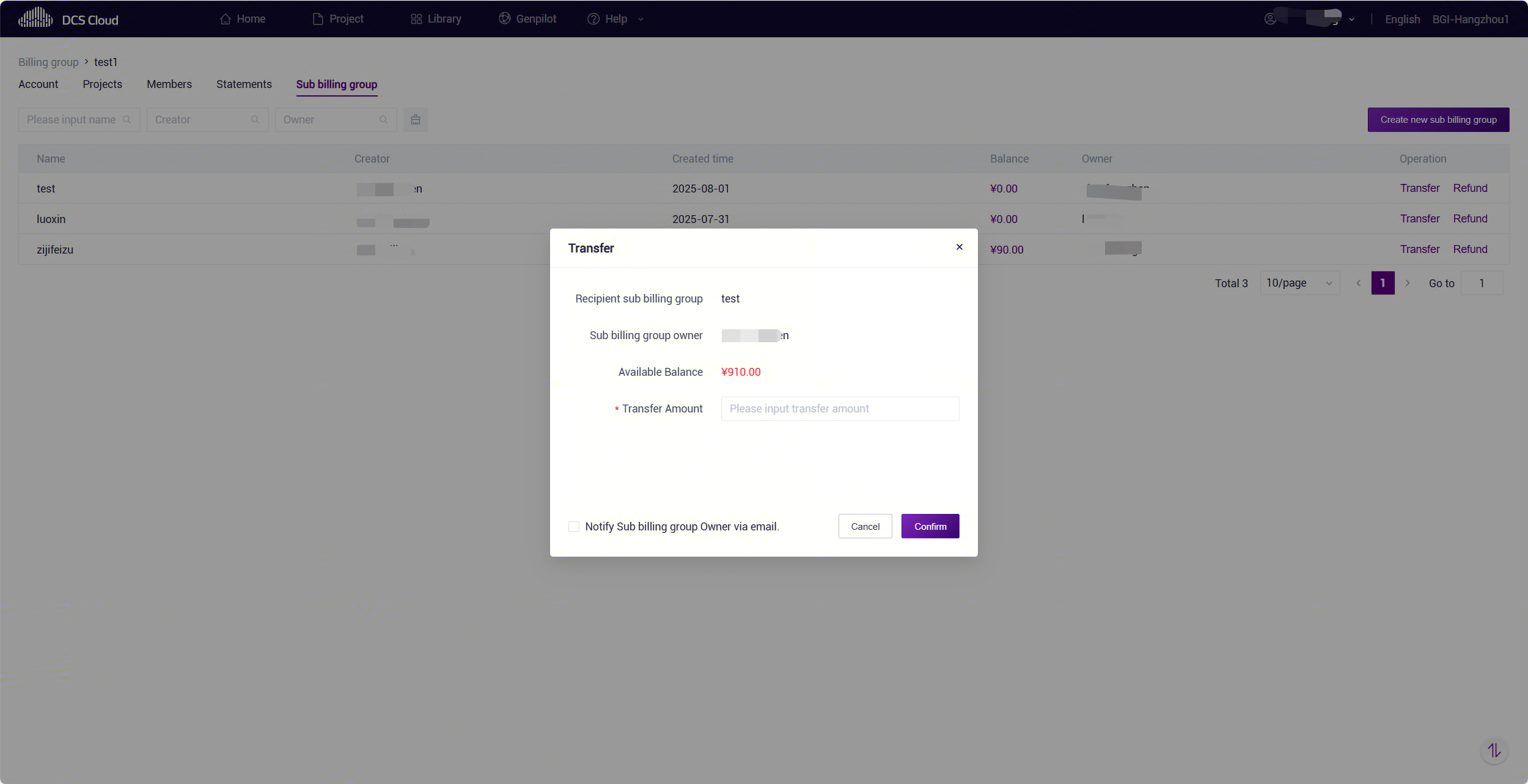
Click "Transfer" to transfer to a sub billing group. The transfer amount cannot exceed the balance of the master billing group.
Refund
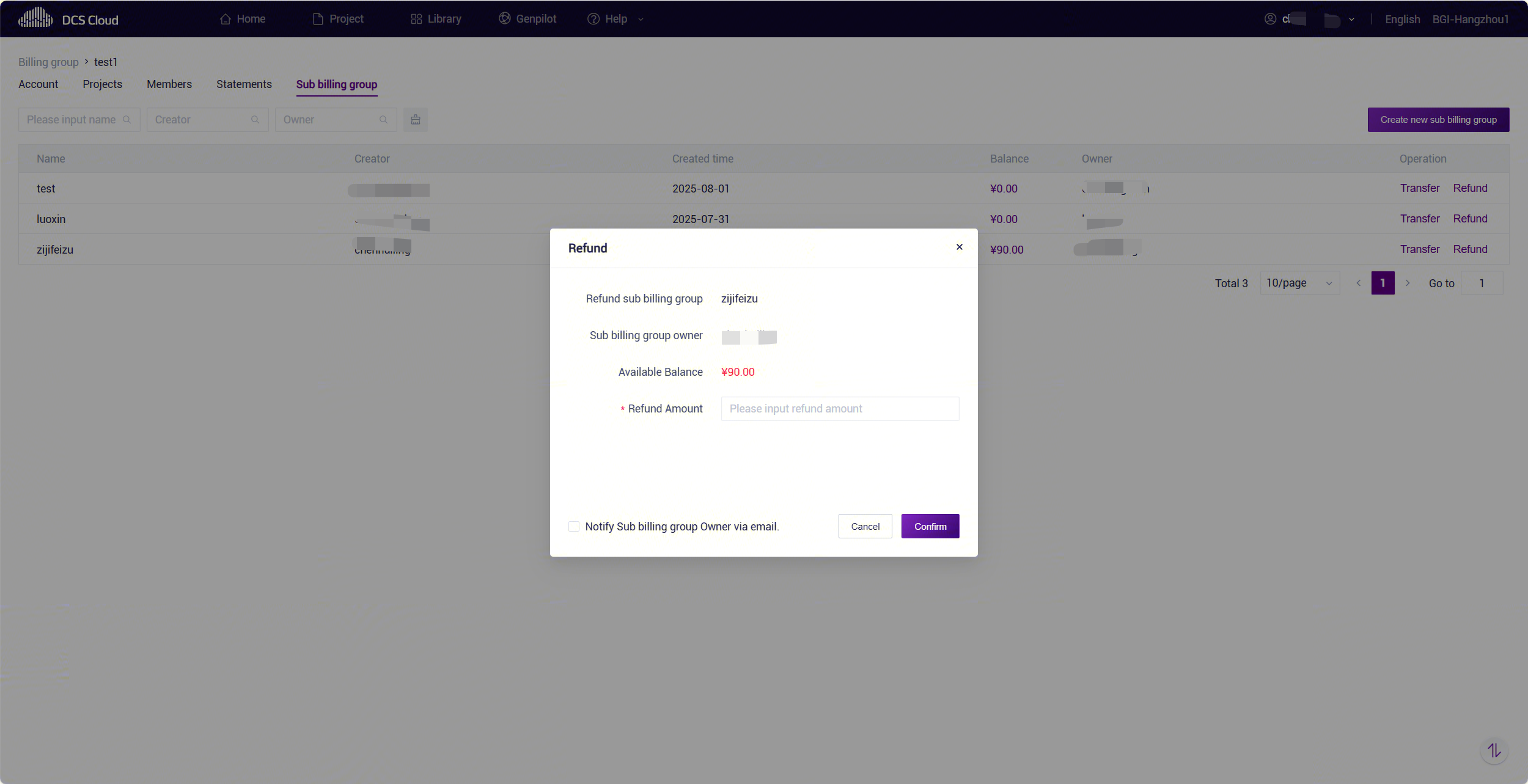
Clicking "Refund" allows the balance of the sub billing group to be refunded to the master billing group. Please note:
- The refund amount cannot exceed the balance of the sub billing group.
- At the time of refund, there must be no tasks under the sub billing group’s projects that have pending cost settlements, such as tasks in the queue, running, being imported, or under cost calculation.
- After refunding, please remind the sub billing group’s project to promptly delete project data to avoid additional charges.
View Transfer Records
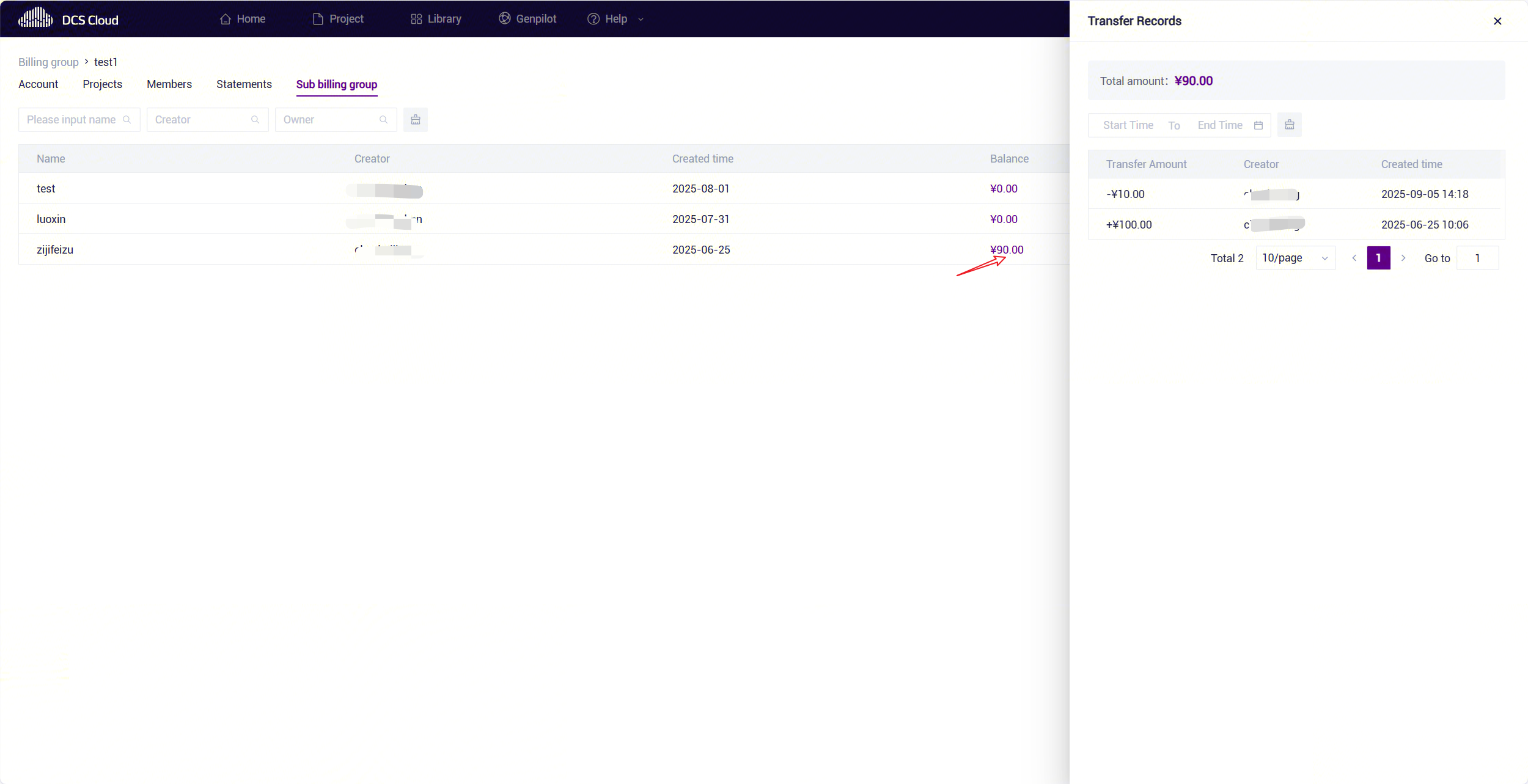
Click on the balance figure to view the transfer records of the sub billing group.
Update note
The platform will adjust the billing rules from time to time based on actual circumstances. Should there be any changes, we will update this document promptly and notify you.
If you have any questions or needs, please leave your questions or valuable suggestions through the platform's "Service support" feature, or contact the official platform email: cloud@genomics.cn.
