
Intelligent Analysis
#Help Documentation
#Intelligent Analysis
Genpilot Intelligent Analysis System is currently in Version 1.0 (Beta) and has supported spatial-omics and single-cell analysis functions. Powered by AI technologies, the system enables semantic task recognition, analysis planning, automatic parameter configuration, and automated task scheduling & execution, delivering a fully intelligent and highly efficient workflow for processing analysis requests.The core analytical capabilities cover preprocessing, dimensionality reduction, clustering, annotation, pseudotime analysis, cell-cell interaction analysis, and gene functional enrichment analysis for single-cell/ spatial omics data. Meanwhile, the system supports invoking user-defined WDL workflows on the DCS Cloud Platform to plan single-cell/ spatial-omics analysis tasks. Future iterations will continuously expand analytical modules and omics coverage—stay tuned for updates.
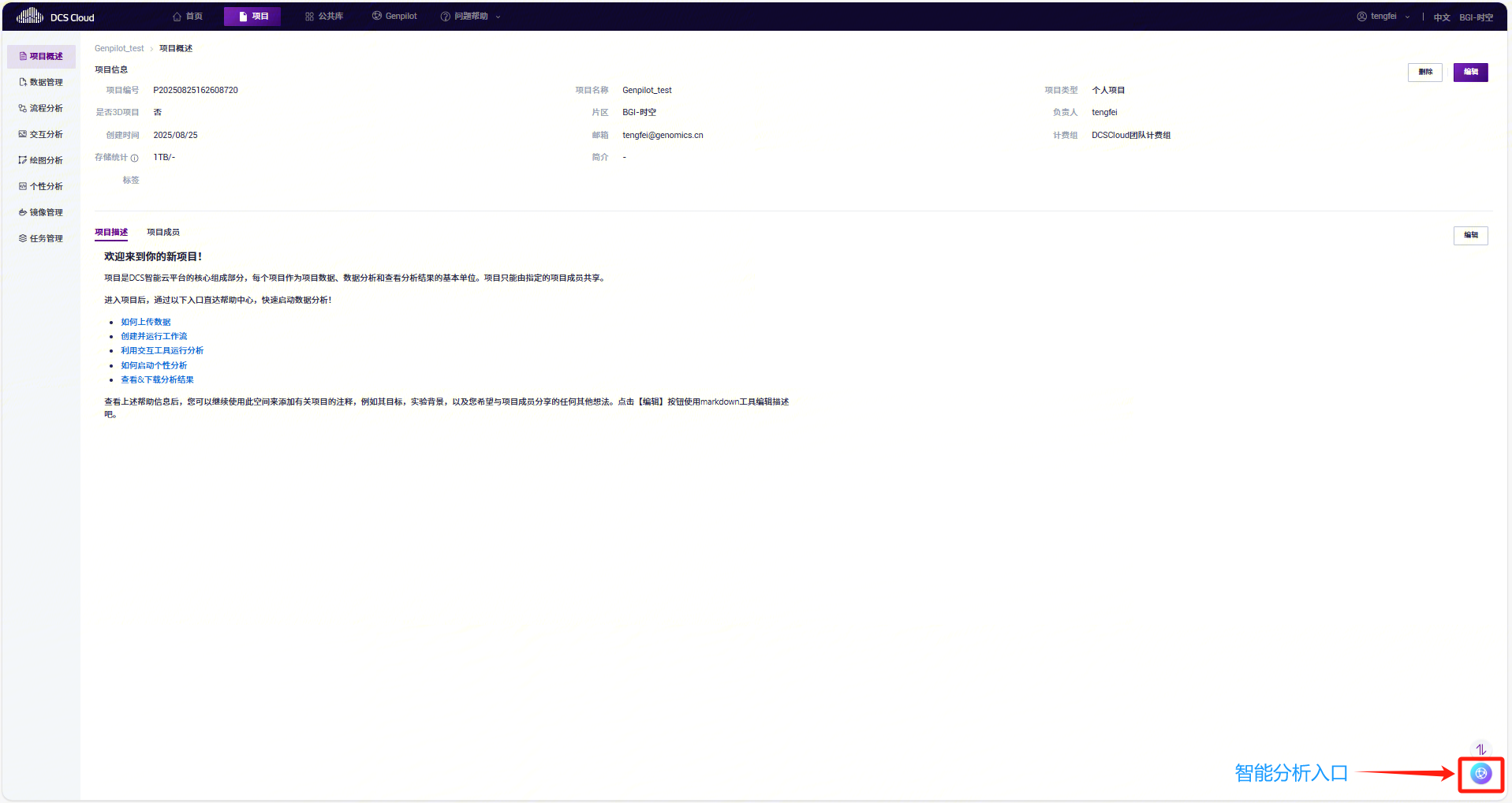
Launching the Intelligent Analysis Feature
Step 1: Select Data
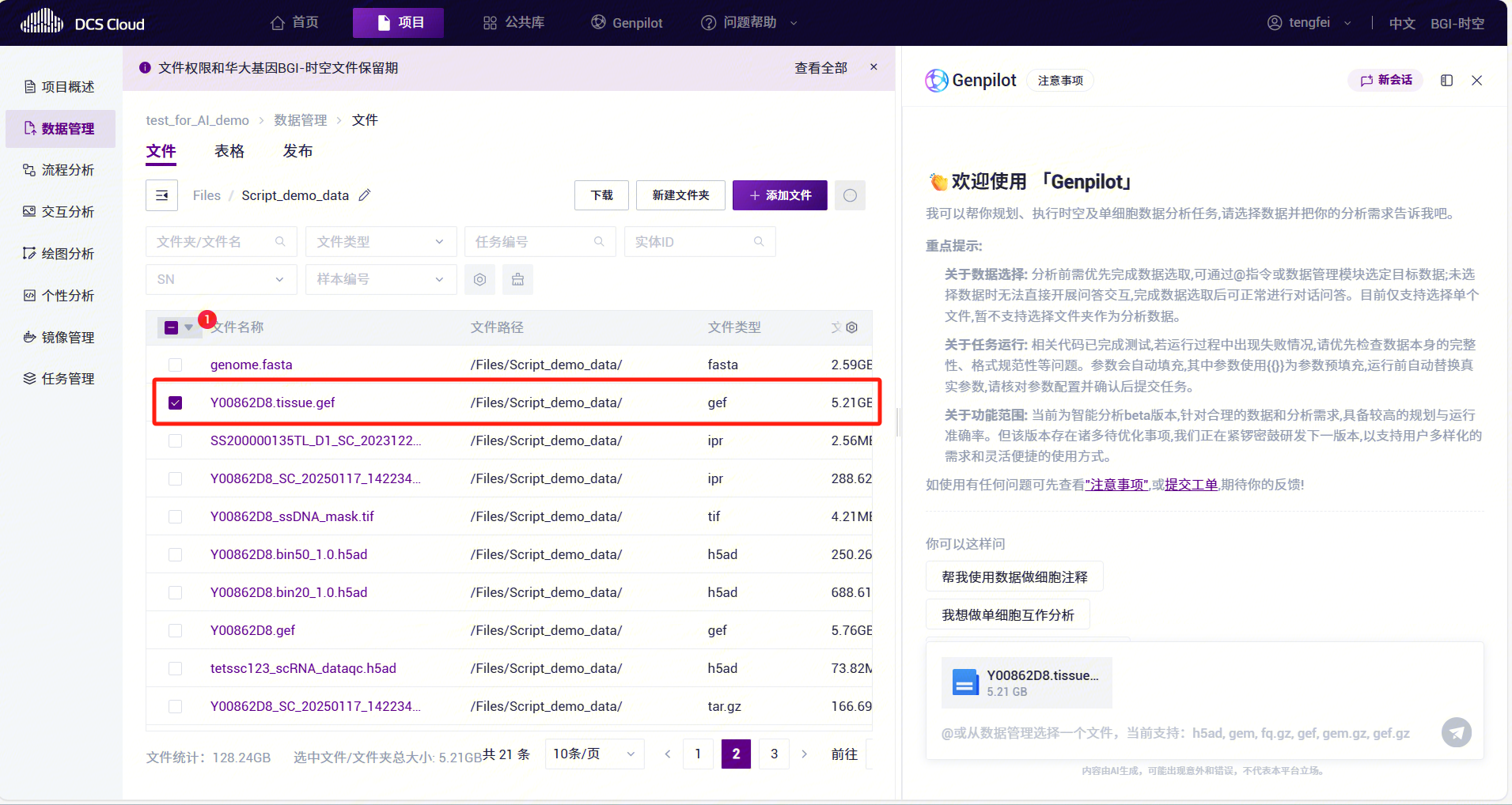
Select data via the Data Management module
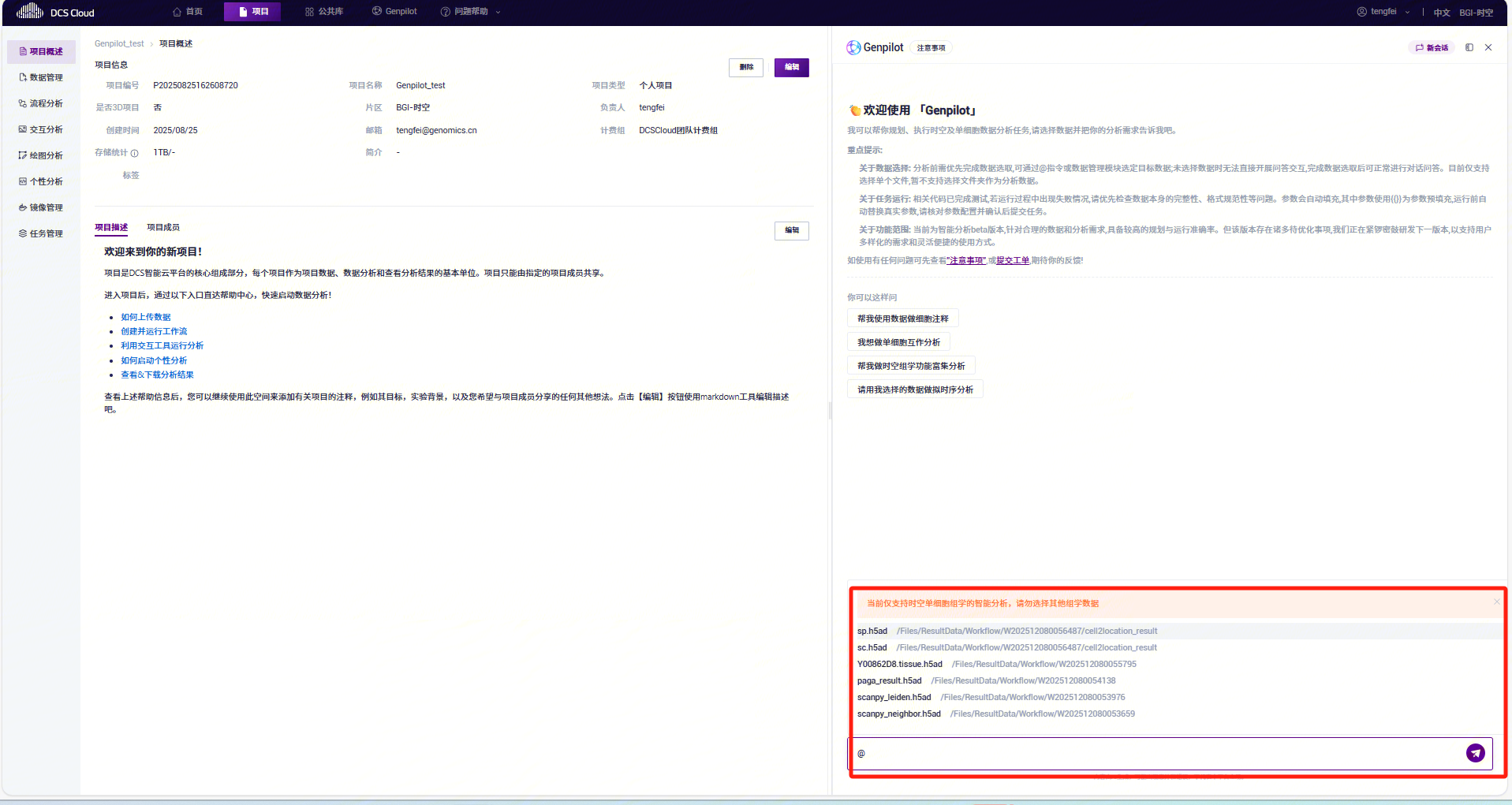
Select data using the @data command
Step 2: Define Data Operations
If the requested analytical module is not currently supported, the system will trigger an AI Q&A session for further clarification.
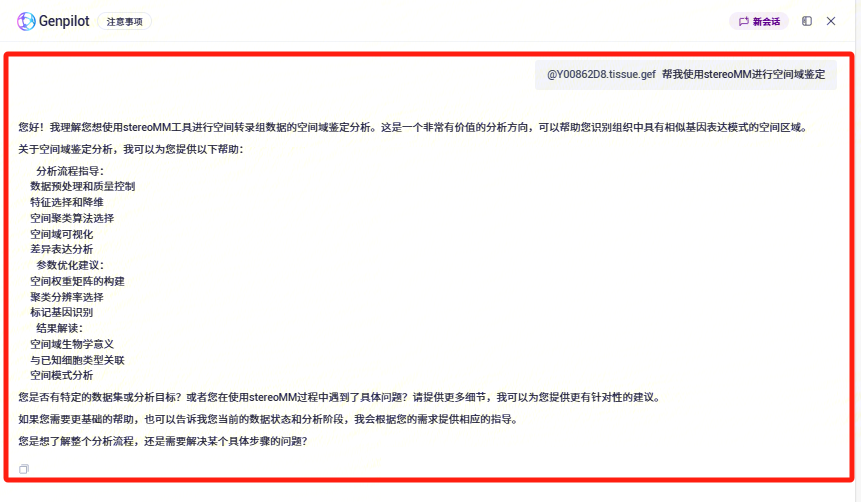
If the preferred software tool is not available, the system will automatically substitute it with an alternative tool that offers equivalent functionality and generate a revised task plan.

Users can manually replace the recommended software if unsatisfied with the initial plan. The system will then update the corresponding application and populate its parameters accordingly.
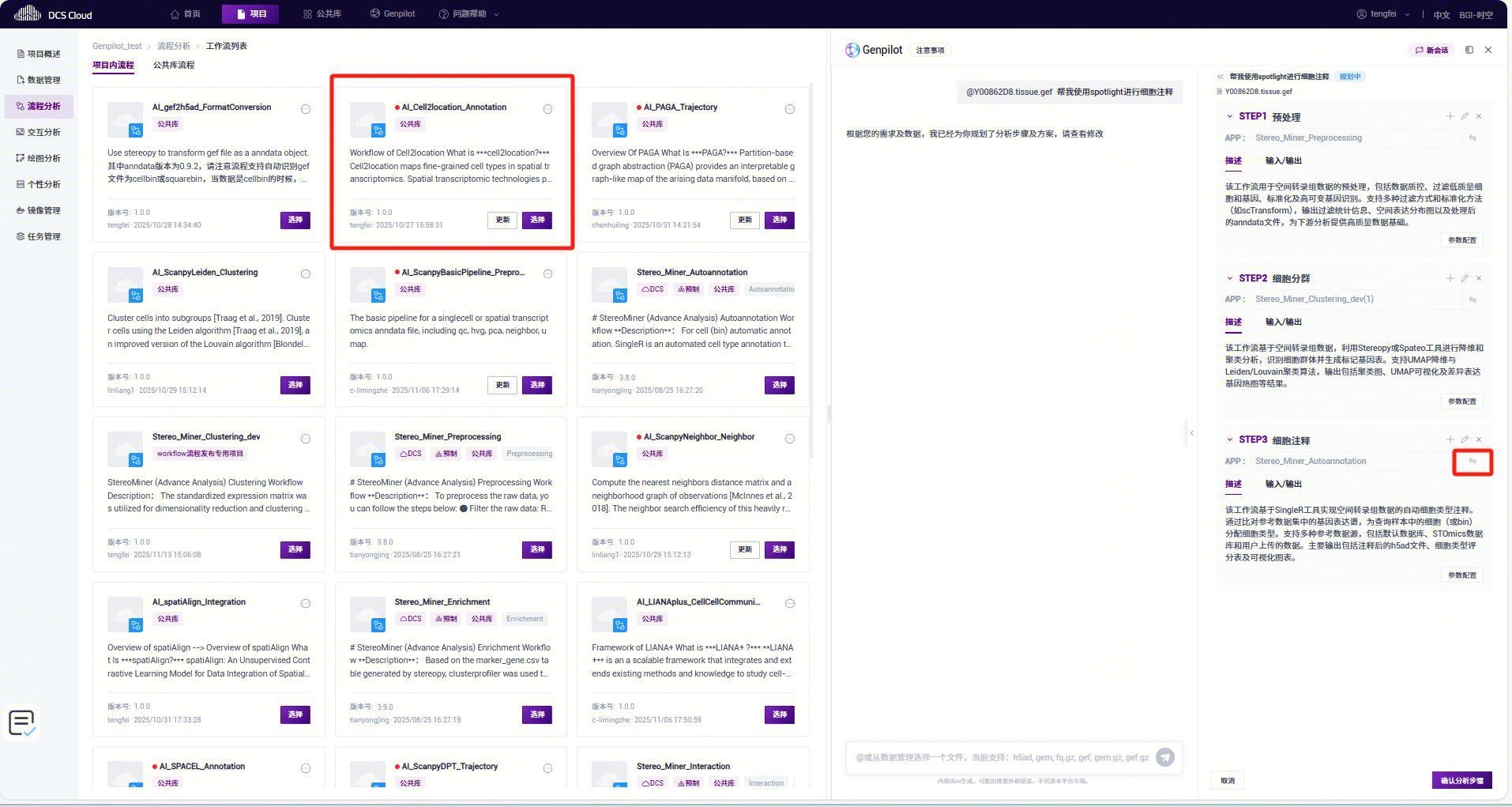
Step 3: Configure and Review Parameters
You can modify parameters in the red box area on the left-hand side.
For input files derived from the output of preceding steps, the system will temporarily use placeholders, which will be replaced with actual file paths before task execution.
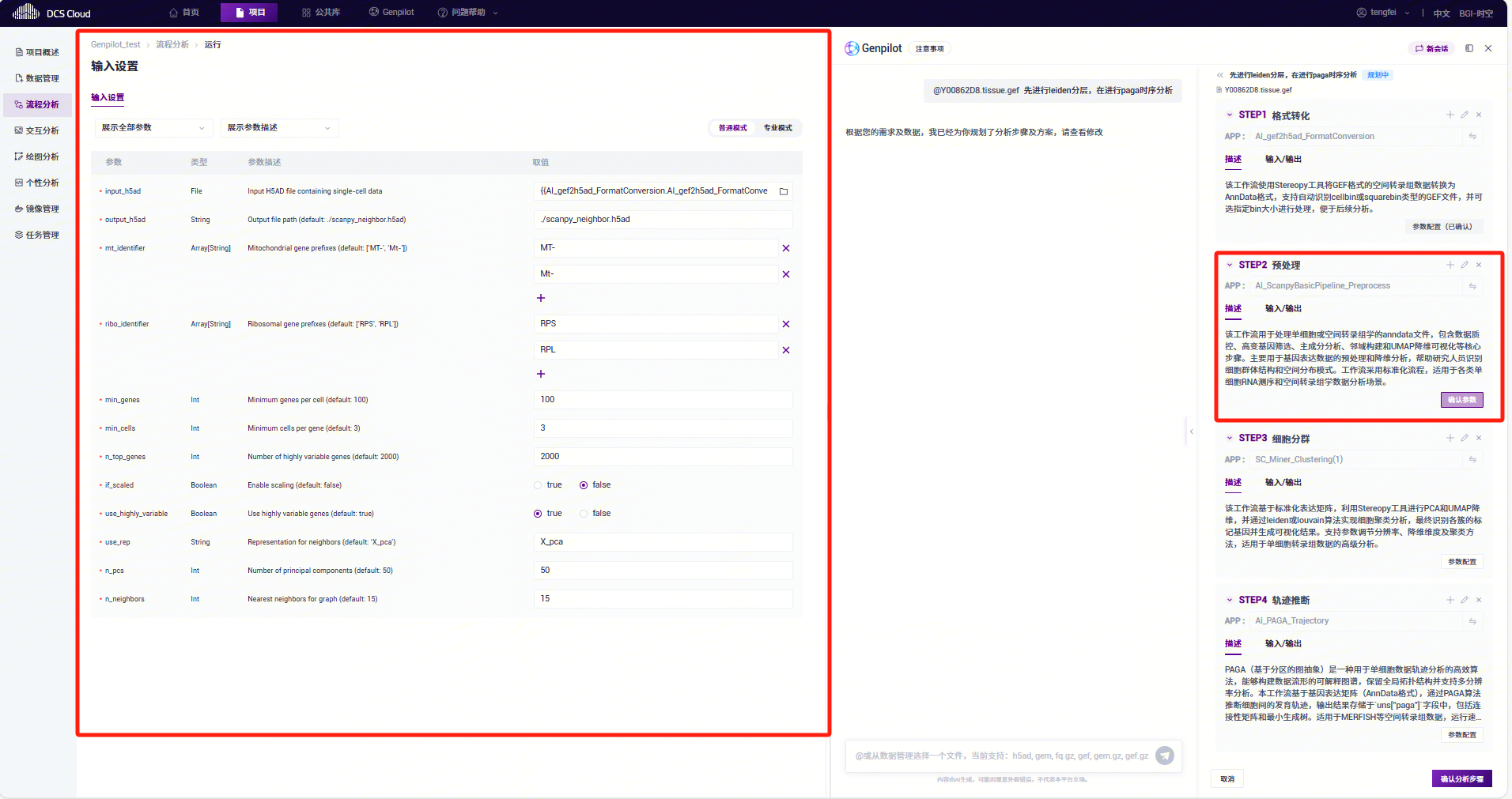
Step 4: Confirm and Submit the Analysis Task
Click on the corresponding task to view detailed results.
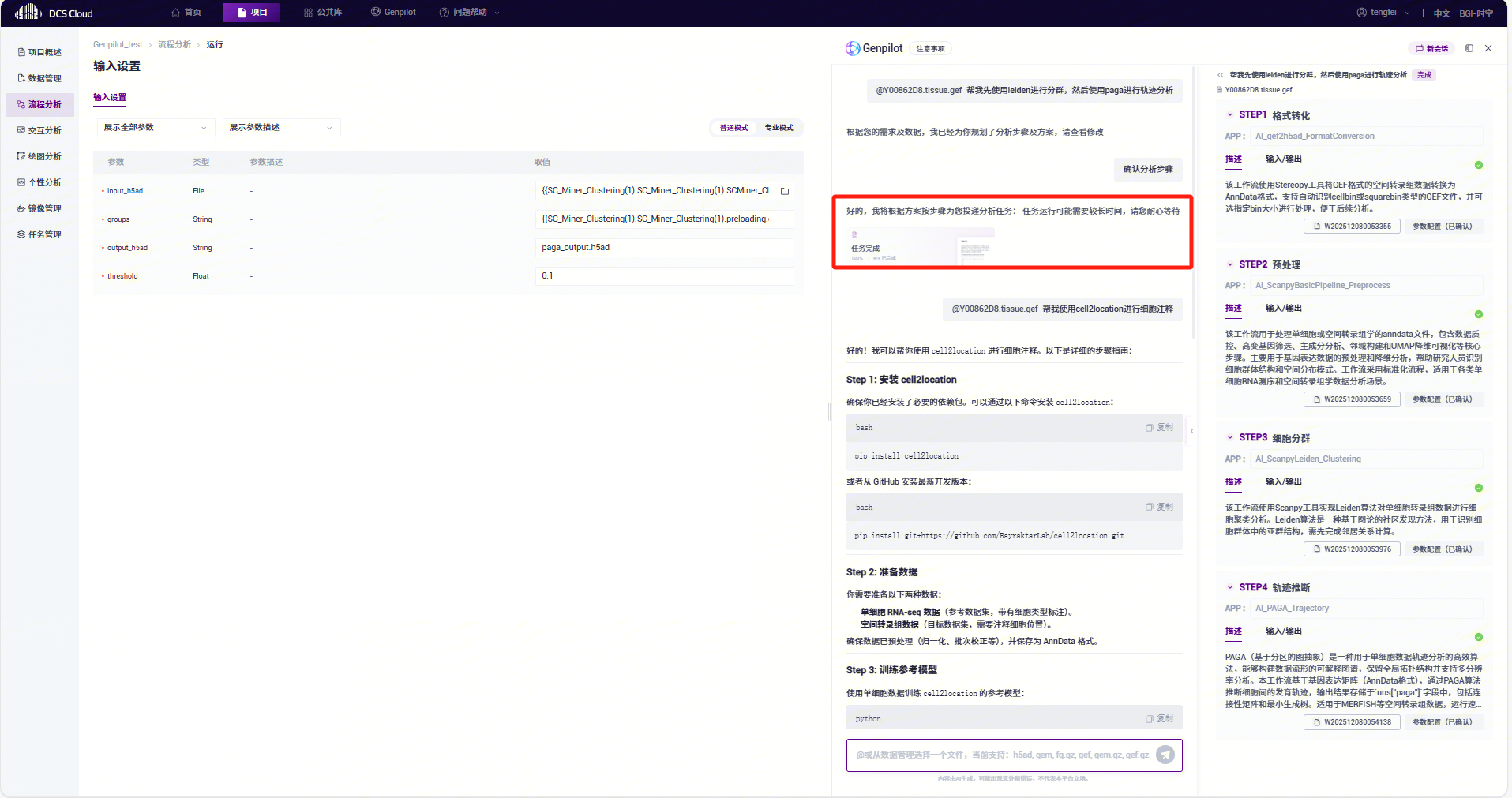
The final output files associated with the assigned task ID will be your analysis results.
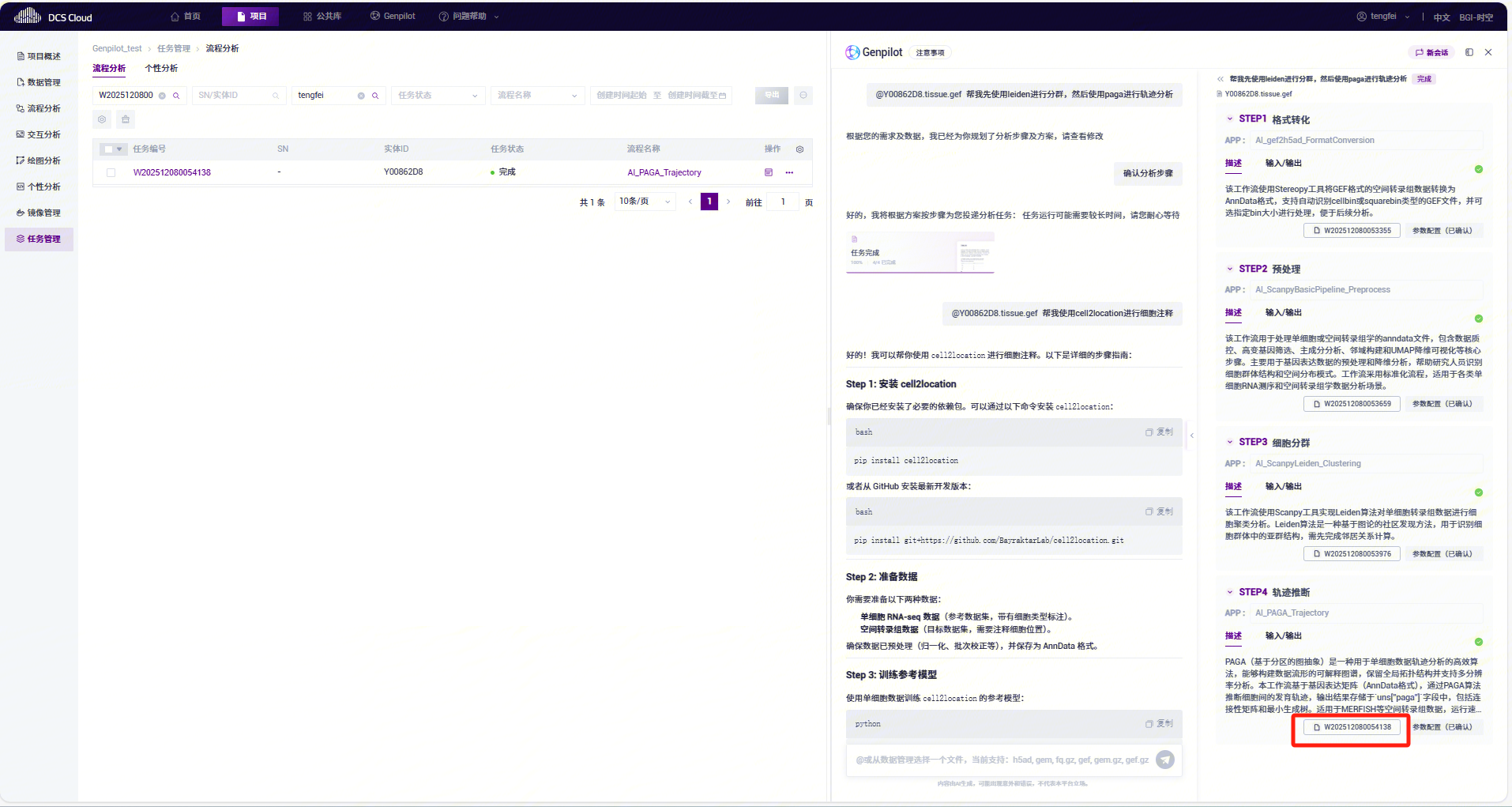
During task execution, you can submit additional queries, which will be answered by the integrated AI assistant.
Upcoming Features in the Next Version
- Support for multi-sample dataset selection and folder-level data import
- Support for initiating analyses using descriptive commands such as "Basic Analysis" or "Advanced Analysis"
- A more flexible process for data validation and requirement confirmation
- Seamless switching between customized analysis and pipeline submission within the dialogue interface
Click the Intelligent Analysis icon located in the bottom-right corner.There are two methods to select data:After selecting the appropriate dataset, specify the desired analytical operations. Example:@data file, perform Leiden clustering first, followed by PAGA pseudotime analysisThe Intelligent Analysis AI will generate a complete step-by-step analysis pipeline. While generating the analysis plan, the AI will automatically generate and populate parameters for each analytical step. Once the task is confirmed, it will be automatically submitted for execution until a "Task Completed" status is displayed.(Please submit custom requirements via the Genpilot Feedback Form)